

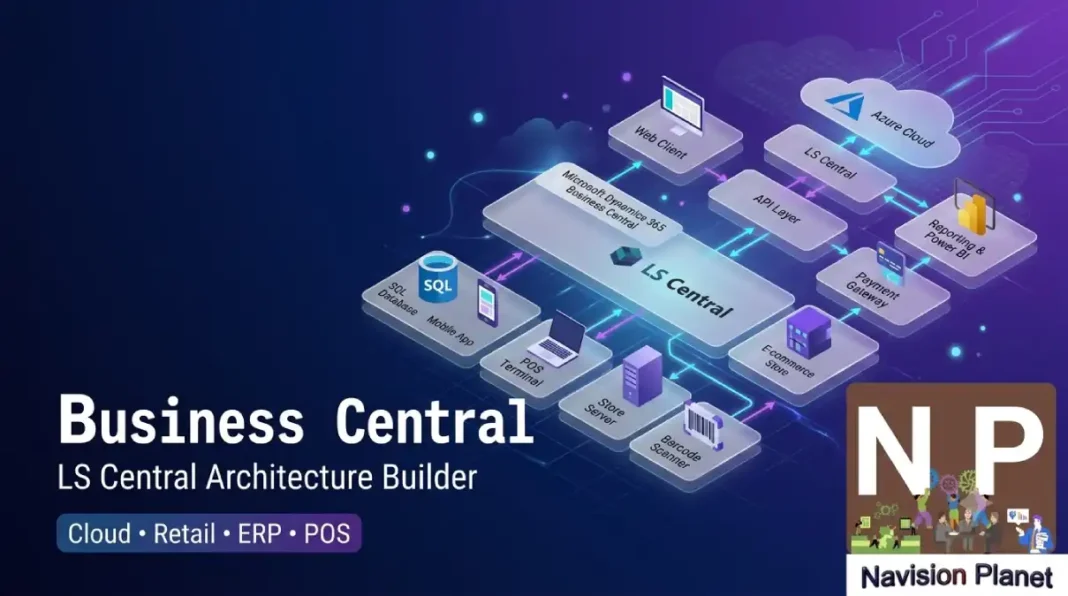
This free LS Central architecture diagram builder lets you design a complete Business Central and LS Central topology right in your browser. Select your deployment model, number of stores, POS terminals, integrations and peripherals, and the architecture diagram updates automatically. You can download it as an image or print it for your solution documents and proposals.
Whether you are scoping a new retail rollout, documenting an existing setup, or explaining the design to a client, a clear Business Central architecture diagram saves hours. Instead of dragging boxes in a drawing app, you make a few selections and get a clean, labelled diagram with the right shapes for cloud, Head Office, stores and POS.
What is an LS Central architecture diagram?
An LS Central architecture diagram is a visual map of how the parts of a retail Business Central solution connect. It shows the flow from the cloud or server at the top, down through Head Office, the data replication layer, each store, and finally the POS terminals and their peripherals. Because LS Central is built on top of Microsoft Dynamics 365 Business Central, the diagram also shows where the core ERP sits and how integrations like payment gateways and e-invoicing plug in.
A good architecture diagram answers three questions at a glance: where does the data live, how do stores stay in sync, and what happens if a store goes offline. The tool above lets you show all three by picking your deployment model, your replication method, and the connectivity mode of each POS.
How to use the Business Central architecture diagram builder
The tool has two modes. Use LS Central (Retail) for store and POS topology, and Business Central (Core ERP) for a pure ERP diagram with modules, users and integrations but no POS. Switch between them using the buttons at the top.
Choosing your deployment model (SaaS, On-Premises, Hybrid)
Start by picking how Business Central is hosted:
- SaaS (Cloud): Microsoft hosts Business Central. This is the default and the recommended path for most new projects, because Microsoft maintains the country localization and updates automatically.
- On-Premises: Business Central runs on your own server or VM. You control the environment but you also maintain updates and compliance yourself.
- Hybrid: Head Office in the cloud with some store components on local servers. Common during migrations.
Setting stores and POS terminals
Use the sliders to set the number of stores and the number of POS terminals in each store. The diagram draws up to six stores in detail and then notes the rest as the same repeating pattern, so it stays readable even for a large chain. The total POS count is calculated for you.
Mixed-mode POS (Online, Hybrid, Offline)
Real stores often mix POS types. The tool lets you set how many POS run in each mode per store:
- Online POS posts transactions directly and keeps no local database.
- Hybrid POS keeps a local database and queues transactions, syncing to Head Office when the connection returns.
- Offline POS is designed to keep trading with no live connection, replicating in batches.
For example, a store with 2 Online and 1 Hybrid POS is drawn as a mixed-mode store, with each terminal colour-coded and badged, and a local database icon added automatically because at least one terminal needs it.
Understanding the LS Central architecture layers
Head Office and Business Central core
Head Office is the heart of the solution. It holds the master data (items, prices, customers, offers) and receives all sales from the stores. In the diagram this is the server box running Business Central plus LS Central. Everything else connects back to it.
Data replication (Azure Storage vs HCS Hybrid)
The replication layer moves data between Head Office and the stores. The tool offers three options:
| Method | How it works | Best for |
|---|---|---|
| Azure Storage Web Replication | Data is exchanged through Azure Storage containers. Cloud-friendly and scalable. | Modern cloud and hybrid setups |
| HCS Hybrid | A Highly Connected Server component handles replication, often used in older or on-premises designs. | Existing on-premises estates |
| Direct / Always-online | Stores connect straight to Head Office with no local database. | Reliable connectivity, simple stores |
Stores, POS and peripherals
Each store connects to Head Office through the replication layer and hosts one or more POS terminals. Every POS can have peripherals such as a receipt printer, barcode scanner, cash drawer, card terminal, customer display, weighing scale or label printer. The tool lists the peripherals you select in a dedicated card so the diagram documents the full store hardware picture.
Business Central core ERP architecture explained
Switch the tool to Business Central (Core ERP) mode to draw a non-retail diagram. This view shows the Business Central architecture diagram without stores or POS, and is useful for finance, distribution and services clients.
In this mode you set the product edition (Essentials or Premium), the number of users, the number of companies or legal entities, the environments (Production and Sandbox), the functional modules in scope, the access clients (web, desktop, mobile, Outlook), and the integrations such as Power Platform, Power BI, Shopify, EDI and custom APIs.
Common LS Central deployment scenarios
- Single-country retail chain: One BC company with LS Central, Azure Storage replication, all stores online. Clean and simple.
- Chain with a remote or low-connectivity store: Most stores online, one store with hybrid or offline POS and a local database for resilience.
- Multi-country group: One company per country (for example KSA, UAE and UK), each with its own localization and compliance, sharing the same retail process design.
- Migration project: Hybrid deployment during a move from on-premises HCS to cloud Azure Storage replication, running both in parallel during cutover.
For deeper setup steps, see our related guides such as the LS Central POS Setup guide, the LS Central vs Dynamics 365 Commerce comparison, the Business Central upgrade path guide, and the LS Retail architecture overview.
LS Central architecture diagram FAQ
What is the architecture of LS Central?
LS Central uses a layered architecture built on Business Central. Head Office holds the master data and core ERP, a replication layer syncs data to and from stores, and each store runs POS terminals with peripherals. Integrations such as payment gateways and e-invoicing connect to the core.
Is LS Central cloud or on-premise?
LS Central runs both ways. It is available as a cloud (SaaS) solution on Business Central online, and as an on-premises deployment on your own server. Many businesses run a hybrid setup during migration, with Head Office in the cloud and some store components local.
What is the difference between Azure Storage replication and HCS in LS Central?
Azure Storage Web Replication exchanges data through Azure Storage containers and suits modern cloud and hybrid designs. HCS (Highly Connected Server) is an older replication component often used in on-premises estates. Moving from HCS to Azure Storage is a planned migration, not a simple switch.
How does an offline POS work in LS Central?
An offline POS keeps a local database so it can keep selling with no live connection to Head Office. Transactions are queued locally and replicated in batches when the connection returns. This design protects stores with weak or unreliable connectivity.
Can one store have both online and hybrid POS terminals?
Yes. A single store can mix POS modes. For example, two terminals can run online and post directly, while a third runs in hybrid mode with a local database for resilience. The store then needs a local database to support the hybrid or offline terminals.
What is the difference between Business Central and LS Central architecture?
Business Central architecture centres on the ERP core, modules, users and integrations, with no point of sale. LS Central adds a retail layer on top: stores, POS terminals, peripherals and replication. LS Central always includes Business Central underneath as the financial and data engine.
Have a scenario the tool does not cover, or want a diagram reviewed for your rollout? Leave a comment below and reference your store count, connectivity and integrations.