I have implemented Business Central for years, and Copilot is the biggest productivity jump I have seen. It doesn’t replace people it takes the busywork out of your day. Follow these steps feature by feature with free instead of you are paying a lot for others.
Before you start (prerequisites):
- Business Central online environment (Copilot is cloud-first).
- Admin access to turn features on; users need access to the relevant pages (Items, Sales Orders, Bank Reconciliation, etc.).
- Feature Management permission to enable preview / new features where applicable.
- Data and privacy consent accepted the first time a user invokes Copilot.
- Keep test data handy so you can validate results before rolling out to the team.
Table of Contents
Enable or Disable Copilot
Goal: Turn Copilot on for your environment or specific users.
Steps
- Open BC and use Tell Me (Alt+Q) – type Feature Management – open the page ( If your country having any Preview feature exists).
Tip: You may try Business Central Keyboard shortcuts for faster navigation.
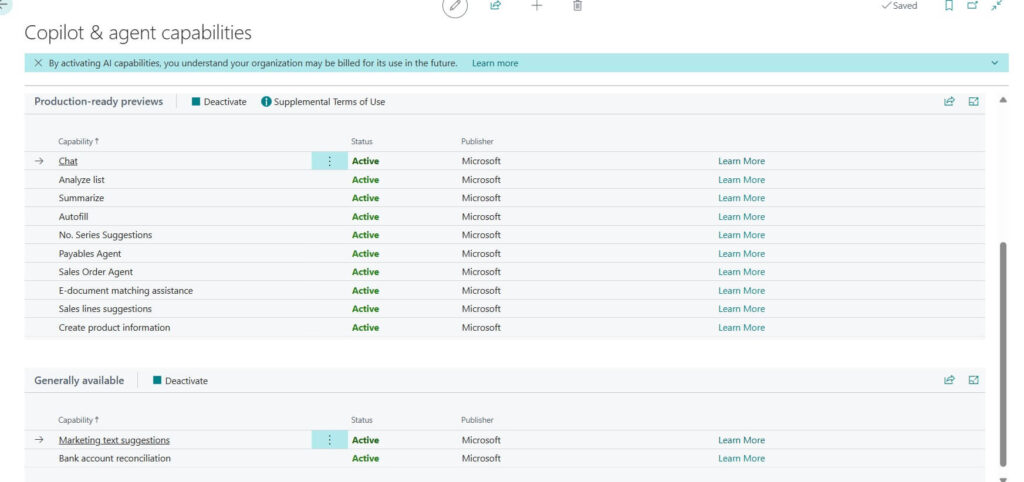
- Locate Copilot-related features (search for “Copilot”, “AI”, or the individual capability names below).
- For each feature you want, set Enabled = On. If a privacy dialog appears, review and accept.
- Optional: limit early access by enabling only for a sandbox or selected user groups.
- Test each feature on sample records; if needed, come back and toggle Off the ones you don’t want live yet.

Tips:
- Start in sandbox first.
- Document what you turned on and why (helps with audit and training).
Marketing Text Suggestions ( Item descriptions )
Goal: Generate professional product descriptions automatically.
Steps : Copilot with Marketing Text Suggestions
- Open Items -> pick or create an item.


- Ensure key attributes are filled (Color, Size, Material, Brand, etc.). The better the data, the better the text.
- On the Item Card, Draft with Copilot option available right side of Item or choose Suggest with Copilot (or similar action for marketing text).


After opening marketing text screen will shows like following


Please click on “Suggest Marketing Text” to initiate. Once performing that system will give following screen like options for verifying the attributes currently entered. Also provide us option to whether to include this on suggestions or not.


- Pick tone / Format / Emphasis if offered (concise, friendly, professional) and review the draft.
Tone: Formal, Casual, Inspiring, Unbeat, Creative
Format: Tagline, Paragraph, Tagline + Paragraph , Brief
Emphasis: No Emphasis, Innovation, Sustainability, Power, Elegance, Reliability, Speed
In the current example I have selected these values, Tone=Inspiring, Format=Tagline + Paragraph, Emphasis=No Emphasis. After this Press “Generate” to continue


You like it “keep it” or else regenerate or change the tone etc.
- Edit as needed, then insert the text into the Description or Marketing Text field and Save.


Like I formatted content you may do the same your end and press ok to store the same.
Tips
Build a quick style guide so all writers edit to the same tone before saving.
You may click on highlighted icon for generating Item Description using Copilot.


Analysis Assist ( natural language analysis on lists )
Goal: Ask questions in plain English and get instant analysis views.
Steps : Copilot in Analysis Assist
- Open any large list (e.g., Posted Sales Invoices, Customers, Items).


- Switch to Analysis mode or choose Analysis Assist (name may vary by version).
- Type what you want to see, e.g., “Sales by month for the last 12 months grouped by customer.”


Click on Generate to continue


In this screen you are having option to “Keep it” or add extra command for optimizing the same.
- Copilot builds the view; refine with follow-ups like “sort by highest value” or “filter to region = West.”


- Save as View and optionally Pin to Role Center for quick access.
Tips
Keep questions short and specific.
Save common analyses as shared views for the team.
Chat with Copilot
Goal: Navigate BC and get answers via conversation.
Steps : Chat with Copilot
- Open the Copilot panel (from the Role Center or the top app bar).


Once click on that icon Copilot chat screen will open for entering the prompt


- Ask direct questions: “Show top 10 overdue customers”, “Open last month’s purchase invoices”, “How do I create a sales quote?”


You may try clicking on the customer wise short icon shows there to direct open the respective Customer Card.
- Use the quick actions Copilot provides (open a page, run a report, apply a filter).
- Refine if it misunderstands: “Filter to customer Contoso only.”
Tips
Use verbs: “show”, “open”, “filter”, “summarize”.
Great for onboarding new users pair this with short SOPs.
Bank Account Reconciliation Assist
Goal: Speed up matching and reduce manual posting.
Steps : Bank Account Reconciliation using Copilot
- Go to Bank Account Reconciliations -> New or directly click on following option available Copilot -> Reconcile inside the Bank Reconciliations page in Business central


- Import the bank statement (file or feed).


You import the file by clicking on Use transaction data from option or Attach.


Press Generate to continue


Keep it to finalize this or else you may Discard it.
- Run Match Automatically (standard step) to clear the easy lines.
- For remaining lines, choose Copilot suggestions to propose matches or G/L accounts.
- Review line by line; accept or override suggestions.
- When differences are resolved, Post the reconciliation.


Tips
Create simple rules first; let Copilot handle the edge cases.
Always review suggested postings AI assists, you decide.
Map E-Documents (incoming invoices / orders)
Goal: Map vendor e-invoices or orders to BC with minimal manual work.
Steps : Map E-Documents using Copilot


- Set up your E-Document or Incoming Documents channel.
- When a document arrives, open it from E-Documents / Incoming.
- Select Map / Match with Copilot to link lines to open Purchase Orders (or create a new invoice).
- Review mismatches (unit, item, quantity, tax) and accept suggestions or correct them.
- Create the purchase invoice (or receipt) and post through your normal approval workflow.


Tips
Standardize vendor item codes to improve matching rates.
Use a sandbox to tune mappings with your top vendors.
Sales Line Suggestions
Goal: Build quotes/orders quickly from a short description or purchase history.
Steps : Sales Line Suggestions using Copilot
- Create a Sales Quote / Order and select a Customer.


- In the Lines area, choose “Suggest Sales Lines” inside the Copilot path.
- Describe the order in simple words like “50 medium blue cotton shirts plus 10 white XL.”
However current example I have used following command
50 Planet office Guest Chair
10 Office Chair Black


- Copilot proposes item lines, quantities, and units. Review, adjust, and Insert.


- Validate prices/discounts from your price list, then Release or Post as usual.
Tips
Keep your item attributes and price lists tidy; suggestions improve dramatically.
Suggest Item Substitutions
Goal: Offer alternatives when an item is out of stock or discontinued.
Steps : Suggest Item Substitutions using Copilot
- On an Item Card, open Item Substitutions.


- Choose Suggest with Copilot to propose similar items based on attributes.


- Approve valid alternatives and insert all to finalize.
- During order entry, when stock is low, select Suggest Substitutions to swap lines quickly.


Tips
- Always select maximum confidence level to highest accuracy level
- Mark “preferred” substitutions to guide sales reps.
Add notes explaining differences (fit, warranty, material) to reduce returns.
Suggest Number Series
Goal: Create clean, non-conflicting document numbering.
Steps : Suggest Number Series using Copilot
- Open No. Series and choose “Generate” option inside the copilot icon.


Click on “Generate” to suggest the result
- Provide a purpose and baseline (e.g., “Sales Invoices FY26”, desired prefix, length).


- Choose “Keep it” if suggested pattern with result along with increments, dates etc.


- Assign the new series in the relevant setup (Sales and Receivables Setup, Purchases and Payables, etc.). If its new series.
Tips
Use unique prefixes per document type and year.
Lock series after go-live to avoid duplicates.
Governance and rollout checklist
- Pilot in a sandbox with a small group.
- Capture before / after metrics (time to reconcile, time to create orders, etc.).
- Train users to review AI suggestions; don’t accept blindly.
- Update SOPs and internal controls to reflect where Copilot is used.
- Revisit accuracy monthly; refine prompts, item data, and vendor mappings.
Quick prompts you can copy
Analysis: “Sales by month this year, group by salesperson, show top 10 customers.”
Chat: “Open customers with overdue balance above 100,000 and sort descending.”
Sales lines: “Create lines for 25 of item 1001 and 10 of item 2007, include standard accessories.”
E-docs: “Match invoice lines to open POs and flag quantity variances above 5%.”
FAQ
Copilot experiences are part of BC online. Some features may be in preview and require enabling in Feature Management.
Copilot respects your BC security users only see what they’re allowed to see. Always review your organization’s data and privacy policies.
You need the standard permissions for the pages you’re using (e.g., Items, Sales Orders, Bank Reconciliation) and access to Feature Management to enable features.
Core experiences are rolling out widely, but availability varies. If a feature isn’t visible, check Feature Management and your environment’s region.
Yes. Toggle individual features off in Feature Management or limit access to specific users.