





A Work Center in Business Central represents a key part of your production process – like a machine, workstation, or department. It defines how much work can be done, when it can be done, and how much it costs.
Setting up a Work Center helps the system plan capacity, schedule operations, and calculate production costs accurately.
Table of Contents
Prerequisites Before Setup
Before you create a Work Center, make sure these setups are ready:
- Capacity Units of Measure (like Hours or Minutes) are already defined.
- At least one Work Center Group is created under Capacities -> Setup.
- A Shop Calendar is set up (defines working days, hours, and holidays).
- You have collected all key data about your production resources (labor rate, capacity, efficiency, etc.).
Step by Step: Creating a Work Center
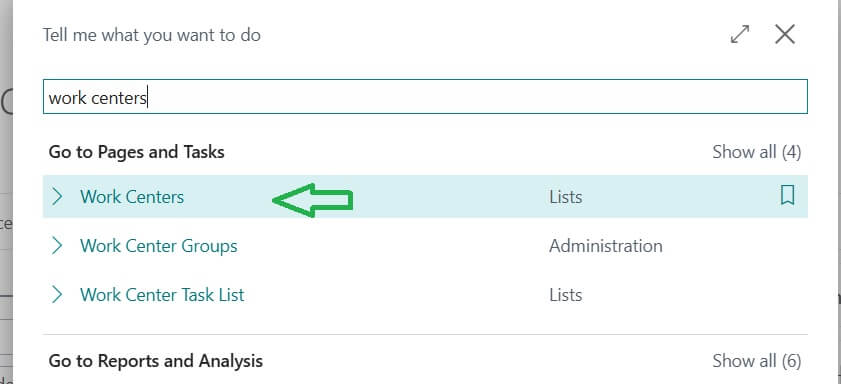
Open a New Work Center Card from search (tell me)
Tip: You may try Business Central Keyboard shortcuts for faster navigation.
Following are the steps
1.Go to Work Centers and click New.
2.In the No. field, enter a unique number (e.g., 100).
3.In the Description field, enter a clear name (e.g., Cutting).
4.In Work Center Group, select which group this work center belongs to.
5.If you want to temporarily stop using this work center, tick Blocked this prevents it from being used in production or posting.

Filling Out the Posting Tab
This section defines the costs of running your work center.
- Direct Unit Cost : Enter the base cost per unit (e.g., cost of labor or machine time per hour).
- Indirect Cost % : Enter additional overhead as a percentage (e.g., electricity, supervision).
- Overhead Rate : Add any fixed cost per unit (like maintenance).
- Unit Cost : The system calculates: UnitCost=DirectCost+(DirectCost×Indirect)
- Unit Cost Calculation : Choose how the system calculates cost — based on Time or Units.
- Specific Unit Cost : Tick this if you want to override the work center cost for specific routing operations.
- Flushing Method : Choose how to post material and time usage:
- Manual : User posts output manually.
- Forward : System auto-posts consumption when the order is released.
- Backward : System auto-posts when the order is finished.
Note: You can override this setting on individual routing lines.
- Department Code / Project Code : Optional fields used for dimension tracking and reporting.
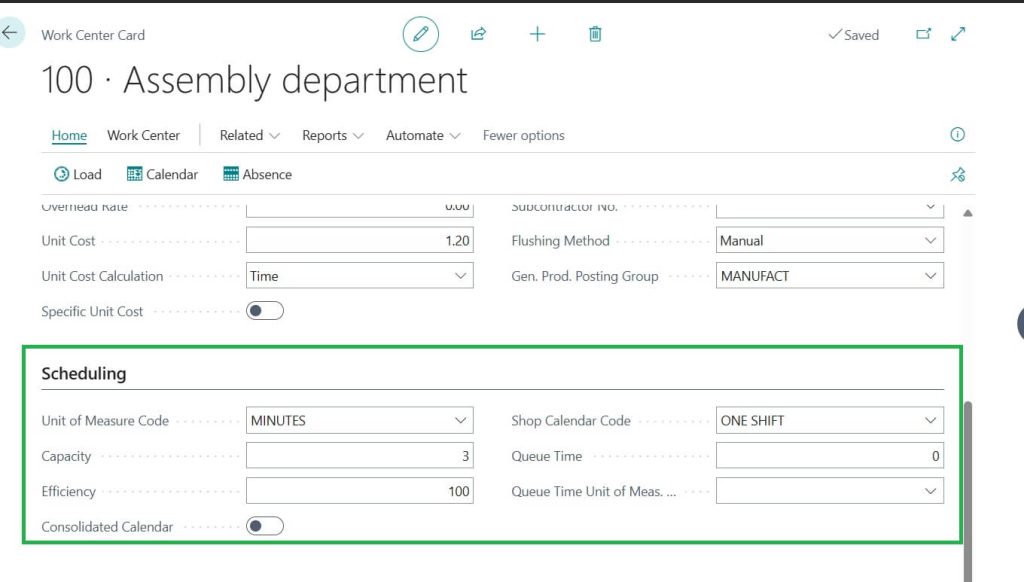
Filling Out the Scheduling Tab
This section defines how the work center’s time and capacity are planned.
- Unit of Measure Code : Enter the time unit used (e.g., Hours, Minutes).
- Capacity : Specify how many people or machines work simultaneously at this center.
If you do not use Machine Centers, this must be 1.
- Efficiency (%) : Enter how efficiently this work center performs.
Example: 90 means the center runs at 90% of standard output.
- Shop Calendar Code : Select a shop calendar that defines the working hours, holidays, and shifts.
- Queue Time : Enter how long a job waits before starting at this work center.
- Queue Time Unit of Measure Code : Define the time unit for the queue (e.g., Hours).
Tip: Queue Time adds to other non-productive times like Wait Time and Move Time defined in the routing.
Summary
Once you have set up your Work Center, Business Central uses it to:
- Plan production schedules accurately.
- Calculate costs and capacity for each operation.
- Control when and how work is processed on the shop floor.
This setup ensures better visibility, resource optimization, and smooth production planning across your manufacturing process.
FAQ – Work Center Setup in Business Central
A Work Center is a place in your production process where specific tasks are done – like a machine, department, or team. It helps plan capacity, schedule jobs, and calculate production costs.
Setting up a Work Center helps Business Central calculate how much work can be done, how long it will take, and what it will cost. It’s essential for accurate planning and costing in manufacturing.
You must first set up capacity units of measure, at least one work center group, and a shop calendar. You also need to collect details like labor rates, efficiency, and shift timings.
In the Work Center card, go to the Scheduling tab and choose your Shop Calendar Code. This tells the system when the work center operates and which days are non-working.
Direct cost is the actual cost of running the work center (like labor or machine time). Indirect cost is an additional percentage added for general overhead like electricity or supervision.
The Flushing Method controls how material and time consumption are recorded. You can set it to Manual, Forward, or Backward, depending on whether you want automatic or manual posting.