




Quick Answer
A work center is a resource where production happens (a department, a group of machines, or people), and a machine center is an optional, more detailed level inside a work center for a single machine. The hierarchy is Work Center Group, then Work Center, then Machine Center. Most manufacturers only need work centers, using the Capacity field to represent several machines or people. Add machine centers only when you must plan or cost individual machines separately.
On almost every manufacturing implementation, the same question comes up: “Should we use machine centers, or just work centers?” It is one of the most important early decisions in a Business Central manufacturing setup, and getting it wrong makes the system harder to work with than it needs to be. Set it up too simply and you lose useful detail; set it up too elaborately and daily work becomes a chore.
This guide explains work centers and machine centers in plain English: what each one is, how they fit together, the three common ways to configure them, and clear guidance on when to use which. By the end you will know exactly which approach fits your shop floor. When you are ready to build one, we link to our step-by-step setup guides too.
Table of Contents
What Is a Work Center?
A work center represents a resource in your production process where work is carried out. It can be a machine, a workstation, a group of similar machines, or a team of people. The work center defines three key things: how much work can be done (capacity), when it can be done (its calendar), and how much it costs (its rates).
Business Central schedules production against work centers. When you build a routing (the sequence of operations to make a product), you say which work center each operation happens in, and the system allocates capacity accordingly when production orders are planned. For most companies, work centers alone are enough to run manufacturing well.

If you want the full field-by-field walkthrough of building one, see our guide: How to Set Up a Work Center in Business Central.
What Is a Machine Center?
A machine center is an optional, more detailed level that sits inside a work center. It represents a single machine (or a single capacity unit). You use machine centers when you need to plan, schedule, or cost individual machines separately, rather than treating the whole work center as one pool of capacity.
The important word is optional. Machine centers are not required, and in most implementations they are not used. A machine center is simpler to set up than a full work center because it inherits things like the shop calendar and dimensions from its parent work center. But it adds a layer of detail you only want if you genuinely need machine-level planning.
💼 From 19 Years in the Field
The most common setup mistake I see is reaching for machine centers too soon. Teams assume “more detail is better”, then spend months maintaining machine-level data nobody uses. Start with work centers only. Add machine centers later, for the specific machines that truly need separate planning or costing. You can always add detail; removing it is harder.
The Hierarchy: Group, Work Center, Machine Center
Business Central organizes production resources in three levels. Understanding this hierarchy is the key to the whole topic.
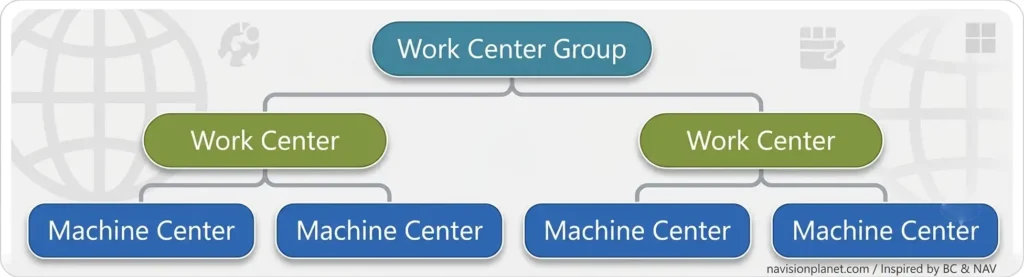
| Level | What It Is |
|---|---|
| Work Center Group | The top level. Mainly used for grouping and capacity reporting across a plant or department. Required, but not used for much beyond reporting. |
| Work Center | The main resource you plan against. Holds capacity, calendar, and cost. Every setup needs work centers. |
| Machine Center | Optional detail inside a work center, one per individual machine. Inherits calendar and dimensions from the work center. |
So a plant (work center group) contains work centers, and a work center can contain one or more machine centers. You schedule production against either the work center or, if you use them, the machine centers.
The Capacity Field (The Part Everyone Misreads)
This one field causes more confusion than anything else in the topic, so let us be very clear.
On a work center, the Capacity field defines how many machines or people work at the same time in that work center. Business Central multiplies the calendar hours by this number. So a work center with a calendar of 8 hours a day and a Capacity of 10 has 80 hours of available capacity per day (8 hours times 10).
Here is the part people miss: with the default scheduling, Business Central assumes one production order occupies one capacity at a time. So on that work center, a single operation is scheduled across the day using one of the ten capacities, and other orders fill the other capacities. The work center can show more than 100% load on a busy day, and that is by design: the load figure is a planning signal for a production planner to act on (move orders, add a shift, and so on), not a hard limit.
📌 Important: By default, Business Central uses infinite capacity scheduling. It will happily plan more than 100% load on a work center so you can see the overload and act on it. If you want a hard limit instead, that is finite scheduling with capacity-constrained resources, covered further below. Do not confuse the Capacity field (how many units of capacity exist) with a limit on how much can be scheduled.
The Three Common Setups
In practice, there are three ways to configure work centers and machine centers. Almost every real shop floor is one of these.
A. Work Centers Only (Most Common)
No machine centers at all. You represent multiple machines or people using the Capacity field on the work center. For example, an assembly area with 10 workers is one work center with Capacity 10; an area with 4 extruders is one work center with Capacity 4. This is by far the most common approach and is enough for most manufacturers. You see the capacity and load at the work center, without tracking exactly which machine or person does each job. Execution works fine with a shared task list: whoever or whatever is free takes the next order.
B. Machine Centers with Consolidated Calendar
Use this when a work center is made of similar machines that can do the same work, and you want to plan each one individually while still seeing the work center total. Each machine gets a machine center with Capacity 1, and on the work center you turn on the Consolidated Calendar toggle. Now the work center’s capacity is the sum of its machine centers’ capacities, and the work center’s own Capacity and Efficiency fields are not used for the total. You can review load per machine and as a work center total, and move tasks from the work center to a specific machine when the start date approaches.
C. Machine Centers without Consolidated Calendar
Use this when a work center contains different machines doing different jobs (for example a grinder feeding two molding machines), and you plan directly on the machine centers. Here you set the work center’s Efficiency to 0 so the work center itself contributes nothing to the total capacity, and all planning happens on the individual machine centers via the routing. The work center exists mainly to group the machines and share a calendar and dimensions.

Differences in Functionality
Beyond the hierarchy, work centers and machine centers differ in a few functional details. These sometimes tip the decision.
| Area | Difference |
|---|---|
| Shop Calendar | Only work centers have a shop calendar. Machine centers inherit it from their work center. This simplifies machine center setup. |
| Moving tasks | You can move an operation from a work center to a machine center, and between machine centers, but not back to a work center. Moving to a machine center can adjust setup time. |
| Scrap | A default scrap percent can be set on a machine center, but not on a work center (there you set scrap on the routing). |
| Routing defaults | Machine centers can default routing times (setup, move, wait) via routing setup. Work centers cannot, so you enter these on each routing. |
| Dimensions | Machine centers do not have their own dimensions; they inherit the work center’s. Fine when dimensions are things like department. |
The move-tasks behavior combined with consolidated calendars is, in practice, the biggest reason people choose to use machine centers at all. If you never need to assign work to a specific machine, you probably do not need them.
Infinite vs Finite Capacity (Capacity-Constrained Resources)
This deserves its own section because it is where a lot of people get stuck, including in long forum threads on this exact topic.
By default, Business Central schedules with infinite capacity. It plans operations by lead time and routing sequence and lets work centers go over 100% load, so you can see the overload and manage it. This is what most planners actually want, because the load is a visible signal to act on.
If you need a machine or work center to accept only a finite load (never scheduled beyond its limit), you mark it as a capacity-constrained resource. There you can set a Critical Load % (how much of available capacity to load) and a Dampener (a tolerance for exceeding it). This is Business Central’s built-in finite scheduling.
💼 From 19 Years in the Field
A classic confusion: someone sets Capacity to 4 on a work center, then marks it as a capacity-constrained resource, and is surprised to see only 25% load or orders squeezed to one at a time. That is the two features interacting. For most shops, leave scheduling infinite and let planners read the load; reach for capacity-constrained resources only on genuine bottlenecks, or use a dedicated visual scheduling add-on for serious finite planning. Standard Business Central does not do detailed shop-floor scheduling on its own.
So Which Should You Use?
Here is the practical decision, distilled from many implementations:
- Use work centers only if you plan at the department or machine-group level and do not need to track individual machines. This fits most manufacturers. Represent multiple machines or people with the Capacity field.
- Add machine centers with a consolidated calendar if you have several similar machines in one area that you want to plan individually while still seeing the work center total, and you want to assign specific jobs to specific machines.
- Add machine centers without a consolidated calendar if a work center holds different machines doing different jobs that must be planned or costed separately.
- Consider capacity-constrained resources or an add-on only for real bottlenecks that need finite scheduling.
When in doubt, keep it simple. Starting with work centers only, and adding machine-level detail later where it clearly earns its keep, almost always leads to a cleaner, more usable system.
📋 Ready to build it?
Once you have decided your approach, follow our step-by-step guides: How to Set Up a Work Center and How to Set Up a Work Center Calendar. They walk through every field on the card, the posting and scheduling tabs, and calculating the calendar.
FAQ, Work Center vs Machine Center
What is the difference between a work center and a machine center in Business Central?
A work center is a production resource (department, machine group, or team) that you plan against. A machine center is an optional, more detailed level inside a work center representing a single machine. Machine centers inherit the calendar and dimensions from their work center.
Do I need machine centers?
Usually not. Most manufacturers run on work centers only, using the Capacity field to represent multiple machines or people. Add machine centers only when you need to plan or cost individual machines separately.
What does the Capacity field do?
It sets how many machines or people work at the same time in a work center. Business Central multiplies the calendar hours by this number, so Capacity 10 on an 8-hour calendar gives 80 available hours per day.
What is the Consolidated Calendar toggle?
When turned on, the work center’s capacity becomes the sum of its machine centers’ capacities, and the work center’s own Capacity and Efficiency are not used for the total. Use it when a work center is made of similar machines you want to plan individually and as a total.
Why does my work center show more than 100% load?
Because Business Central uses infinite capacity scheduling by default. Going over 100% is intentional, so a planner can see the overload and act. For a hard limit, use finite scheduling via capacity-constrained resources.
What is a capacity-constrained resource?
A work center or machine center marked to accept only a finite load, so it is never scheduled beyond its limit. You set a Critical Load percent and a Dampener tolerance. Use it for genuine bottlenecks, not everywhere.
Can I set efficiency to zero on a work center?
Yes. Setting Efficiency to 0 means the work center contributes nothing to the total capacity, which is what you want when you plan entirely on its machine centers (setup C above).
Final Thoughts
Work centers and machine centers are not competing choices so much as two levels of detail. Work centers are the resource you plan against and are enough for most manufacturers. Machine centers add machine-level planning and costing when you truly need it, at the cost of more setup and maintenance. The hierarchy of work center group, work center, and machine center, plus a clear understanding of the Capacity field and infinite versus finite scheduling, is really all you need to make the right call.
Keep it as simple as your shop floor allows. Start with work centers, add machine centers only where they earn their place, and reserve finite scheduling for real bottlenecks. Do that and your Business Central manufacturing setup will be both accurate and pleasant to work with.
Stay tuned to NavisionPlanet for more practical Business Central manufacturing guides drawn from real project experience.
Note: Field names and behaviour can vary slightly between Business Central versions. This guide reflects current Business Central. Confirm specifics for your version on Microsoft Learn or with your partner, especially for finite scheduling.
📖 Related guides on Navision Planet:
→ How to Set Up a Work Center in Business Central
→ How to Set Up a Work Center Calendar in Business Central
→ Subcontracting in Business Central
→ MRP vs MPS in Business Central

