Quick Answer
Your current company name in Business Central is shown at the top left of the Role Center (this is the Company Display Name) and in My Settings. To switch companies, open My Settings, change the Company field, and click OK. Business Central actually uses three names: Company Name (the real ID), Display Name (what users see), and URL Name (used in the web address). Developers can read each in AL with CompanyName, CompanyProperty.DisplayName(), and CompanyProperty.UrlName().
“Which company am I actually in right now?” It sounds like a simple question, but in Business Central it comes up constantly, especially when you run more than one company and they look similar. And there is a twist: Business Central stores not one company name but three, and knowing the difference saves real confusion.
This guide covers it for everyone. First the simple business-user steps (see the current company, switch companies, rename one), then the three types of company name explained in plain English, and finally the developer section for getting each name in AL code. Jump to whichever part you need.
📋 In This Guide
Table of Contents
Where to See the Current Company Name
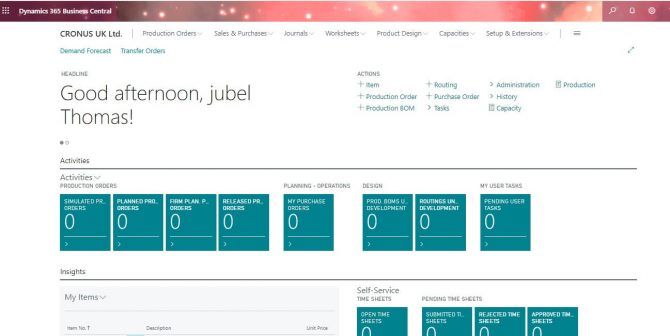
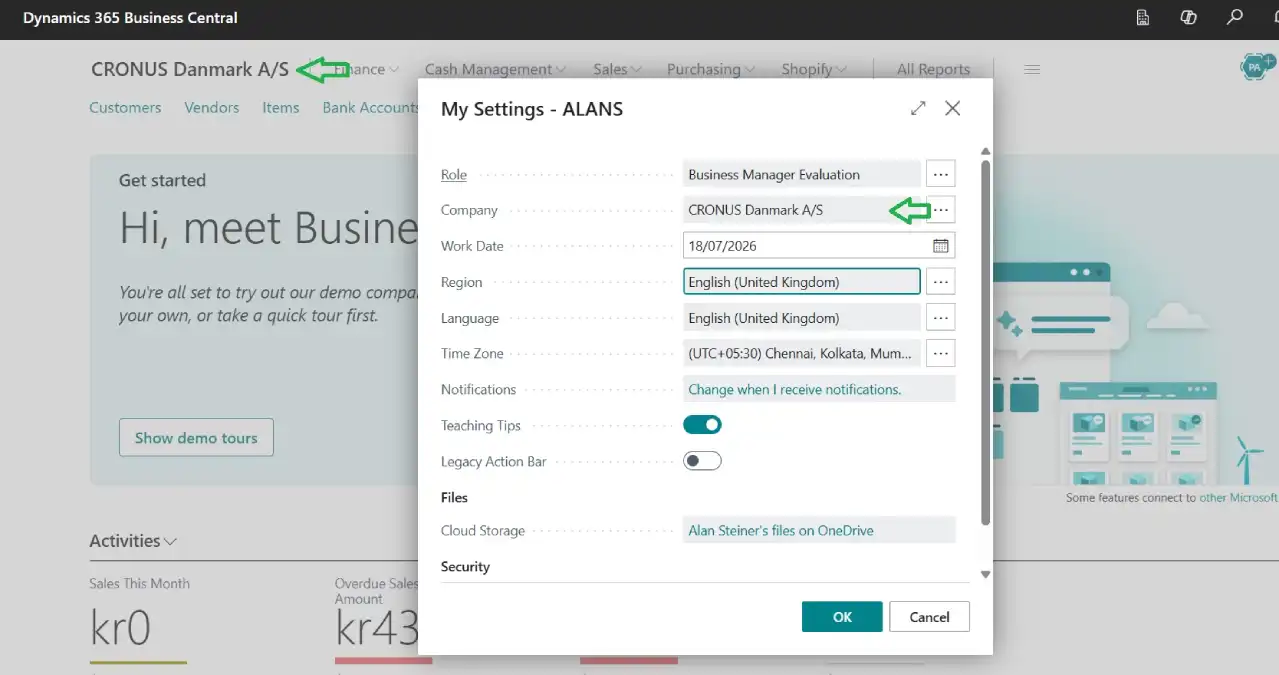
First, look at the top left of the Role Center (your home page). The name shown there is the current company. Clicking it always takes you back to the Role Center home page, which is a handy shortcut on its own.
First, look at the top left of the Role Center (your home page). The name shown there is the current company. Clicking it always takes you back to the Role Center home page, which is a handy shortcut on its own. Second, open My Settings. Click the settings cog in the top right corner, then My Settings. The Company field shows the current company name. This is also where you change it, which we will cover next.
💡 Quick check: You can also tell which company you are in by the web address. The company appears in the URL after ?company=. That is the URL Name version, explained further below.
How to Switch Companies
If you have access to more than one company, switching is quick:
- Click the settings cog in the top right corner
- Choose My Settings
- In the Company field, click the field and pick the company you want
- Click OK
Business Central reloads into the selected company, and the new company name appears at the top left. The company you pick becomes your default the next time you sign in, until you change it again.
💼 From 18 Years in the Field
The most common cause of “I posted to the wrong company” is two companies with near-identical display names. If you run a live company and a test company, give the test one an obvious Display Name like “CONTOSO (TEST, do not use)”. A clear name at the top left prevents costly mistakes, and it is a two-minute change.
The Three Company Names Explained
Here is the part that trips people up. A single company in Business Central has three different “names”, each with a job. You can see them on the Companies page (search Companies with Alt + Q).
| Name Type | What It Is |
|---|---|
| Company Name | The real, underlying name and the primary key of the company. This is the true identifier the system uses. Example: My Company 02 |
| Display Name | The friendly name users actually see in the interface (top left, My Settings). Can be the same as Company Name or different. Example: My Company 02 Display Name |
| URL Name | The company name as it appears in the web address, with spaces and symbols encoded. Example: My%20Company%2002 |
In plain terms: Company Name is the true ID (be careful changing it), Display Name is the label humans read, and URL Name is what appears in links and web service or API addresses. Most users only ever deal with the Display Name. The distinction matters most when writing integrations or sharing direct links to a specific company.
📌 Why this matters for links and APIs: When you build a web service or API URL that targets a specific company, you use the URL Name (the encoded version), not the friendly Display Name. Using the wrong one is a very common reason an integration cannot find the company.
How to Rename a Company
You can change how a company is named, but which “name” you change makes a big difference.
Changing the Display Name (safe and common). This just changes the friendly label users see. Open the Companies page, select the company, and edit the Display Name. Nothing in your data breaks, because the underlying Company Name (the real ID) stays the same. This is the change you will make most often, for example to add “(TEST)” to a sandbox company.
Also read : How to Create a New Company in Business Central
Changing the Company Name (the real ID, handle with care). This renames the actual company identifier. It is possible, but it is a bigger action because the Company Name is the primary key that other things can reference. Do this deliberately, ideally with your partner, and never casually on a live production company.
Also read: Display Company Logo in Business Central and Change the Theme color
⚠️ Before renaming the real Company Name: take a backup or export, do it in a sandbox first, and check any integrations, bookmarks, saved links, or API calls that reference the old name, because the URL Name will change with it. For a simple relabel, change the Display Name instead and avoid all of this.
For Developers: Get the Company Name in AL
If you are writing an extension and need the current company’s names in code, Business Central gives you a direct method for each. No table lookups required.
| To Get | Use |
|---|---|
| Current Company Name | CompanyName (or Database.CompanyName()) |
| Current Display Name | CompanyProperty.DisplayName() |
| Current URL Name | CompanyProperty.UrlName() |
A note worth knowing: the Company Information table (table 79) holds company address and details, but it does not contain the Display Name field. That is why the best practice for the display name is the CompanyProperty.DisplayName() method rather than a table lookup. If no display name is set, it falls back to the Company Name automatically.
Here is a single, clean example that shows all three at once. Drop it into a page extension and open the page to see them:
pageextension 50123 ShowCompanyNames extends "Customer List"
{
    trigger OnOpenPage()
    var
        Msg: Label 'Company Name: %1\Display Name: %2\URL Name: %3';
    begin
        Message(Msg, CompanyName, CompanyProperty.DisplayName(), CompanyProperty.UrlName());
    end;
}
When you open the Customer List, it shows a message with all three names for the current company. Swap the trigger for your own logic as needed. For a deeper AL starting point, see our Learn AL Programming guide.
FAQ, Current Company Name in Business Central
Where do I see the current company name in Business Central?
At the top left of the Role Center (the home page), and in My Settings (settings cog, then My Settings). Both show the current Company Display Name.
How do I change which company I am working in?
Open the settings cog, choose My Settings, change the Company field, and click OK. Business Central reloads into that company and remembers it as your default.
What is the difference between Company Name and Display Name?
Company Name is the real underlying identifier (the primary key). Display Name is the friendly label users see in the interface. They can be the same, but changing the Display Name is safe while changing the Company Name is a bigger action.
What is the Company URL Name?
It is the company name encoded for use in a web address, for example spaces become %20. You use it in Business Central URLs and in web service or API links that target a specific company.
How do I get the current company name in AL?
Use CompanyName for the name, CompanyProperty.DisplayName() for the display name, and CompanyProperty.UrlName() for the URL name. The Company Information table (79) does not hold the display name, so use the method instead.
Can I rename a company without breaking my data?
Yes, if you change the Display Name only, since the real Company Name stays the same. Renaming the actual Company Name is possible but should be done carefully (backup, sandbox first, check integrations), because it is the primary key and changes the URL Name too.
Why does my API or link say the company was not found?
Often because you used the friendly Display Name instead of the URL Name in the address. Web service and API URLs need the encoded URL Name version of the company.
Final Thoughts
The current company name in Business Central is simple once you know two things: it shows at the top left of your Role Center and in My Settings, and behind that friendly label sit three names (Company Name, Display Name, and URL Name) each with a purpose. Business users mostly deal with the Display Name, admins occasionally rename companies, and developers reach all three in AL with one method each.
Keep your Display Names clear (especially for test companies), change the real Company Name only with care, and use the URL Name in links and integrations. That covers every situation this question comes up in.
Stay tuned to NavisionPlanet for more clear, practical Business Central guides for users, admins, and developers alike.
📖 Related guides on Navision Planet:
→ Learn AL Programming Language
→ Consolidation in Business Central (Multi-Company)
→ User Setup & Permission Sets in Business Central
→ Business Central Keyboard Shortcuts