
Quick Answer
Consolidation in Business Central combines the financial statements of multiple companies into one consolidation company. You create an empty consolidation company, define each subsidiary as a business unit (with its ownership percentage and currency), prepare the G/L accounts, then run the consolidation to pull in each company’s balances. Companies in the same environment use the Database method; companies in different environments use the API method. Afterwards you post elimination entries for intercompany transactions and print the consolidated reports.
If your organization runs more than one company, sooner or later management asks the same question: “What do the numbers look like for the group as a whole?” Answering it by exporting trial balances to Excel and stitching them together is slow and error-prone. Business Central has a proper answer built in: consolidation.
In this guide, we’ll walk through the full consolidation process in Business Central, from creating the consolidation company and business units to running, testing, and eliminating intercompany entries, in simple words with the exact pages and fields to use.
📋 In This Guide
- What Is Consolidation?
- Key Concepts (Consolidation Company & Business Units)
- Quick Path: The Assisted Setup Guide
- Step 1: Create the Consolidation Company
- Step 2: Prepare the G/L Accounts
- Step 3: Set Up Business Units
- Step 4: Currency and Exchange Rates
- Step 5: Test Before You Consolidate
- Step 6: Run the Consolidation
- Step 7: Eliminate Intercompany Transactions
- Step 8: Consolidated Reports
- FAQ
Table of Contents
What Is Consolidation?
Consolidation is the process of combining the financial statements of two or more companies (subsidiaries) into one set of group financial statements. In Business Central, you do this by pulling the general ledger entries or balances of each subsidiary into a special company created only for this purpose. The subsidiaries keep working in their own companies as normal; consolidation simply reads their figures and combines them.
Business Central’s consolidation handles the realistic complications too: subsidiaries with different currencies (translated using exchange rates you control), partial ownership (include only your percentage of a business unit), different fiscal years, and even subsidiaries with a different chart of accounts (mapped account by account).
What Consolidation Does Not Bring Across
Just as important is knowing the limits, because this surprises people. Consolidation combines general ledger balances only, taken as at the last day of the period you consolidate. It does not copy daily detail, so it will not bring across:
- Detailed daily G/L transactions. The system posts one consolidated figure per account for the period (dimension-wise if you use dimensions), not every individual entry.
- Sub-ledgers. Customer, vendor, and bank ledger entries do not flow into the consolidation company.
- Posted documents. Posted sales invoices, purchase invoices, and similar documents stay in the subsidiary.
- Budgets. You cannot consolidate budgets directly into the consolidation company.
In short, consolidation is about combined financial position at period end, not a full copy of every subsidiary’s activity. That is exactly what group reporting needs, and it is why the consolidation company stays lean.
Key Concepts: Consolidation Company and Business Units
Two terms drive everything, so let’s define them clearly.
The consolidation company is a separate, empty company in Business Central used only for consolidation. It holds no day-to-day transactions of its own. The only entries inside it are the consolidated figures pulled from the subsidiaries, plus any elimination and adjustment journals you post at group level. Keeping it clean this way means you can always delete and re-run a consolidation without touching real transactions.
A business unit is how the consolidation company sees each subsidiary. For every company you want to include, you create a business unit card that holds its company name (or API connection), the consolidation percentage (100% for wholly owned, less for partial ownership), its fiscal year dates, and its currency details.
💼 From 18 Years in the Field
Resist the temptation to post anything else in the consolidation company. The moment real transactions mix with consolidated figures, re-running a period becomes risky and reconciliation becomes painful. Keep it as a reporting shell: consolidated entries, eliminations, and nothing more. Your auditors will thank you.
Quick Path: The Company Consolidation Assisted Setup
If your scenario is simple (for example, you wholly own all the companies to consolidate), Business Central has a wizard that does most of the work. Press Alt + Q, search Assisted Setup, and choose Process Consolidations under the relevant group. The Company Consolidation guide walks you through creating (or choosing) the consolidation company, selecting the companies to include, and previewing the result before anything is transferred. Business Central even verifies the transfer will succeed before committing it.
For anything more advanced (partial ownership, foreign currency, cross-environment companies), use the manual setup below. It gives full control, and it’s what most real implementations use.
Step 1: Create the Consolidation Company
- Press Alt + Q, search Companies, and open the list
- Click New and create a company, for example
CONSOLIDATED - Set up the basics only: chart of accounts (usually a copy of the group chart), general posting setup, and the local currency (LCY) the group reports in
- Do not post any operational transactions in it
The consolidation company’s chart of accounts is the “target” every subsidiary’s figures map into, so use the group’s standard chart here.
Step 2: Prepare the G/L Accounts
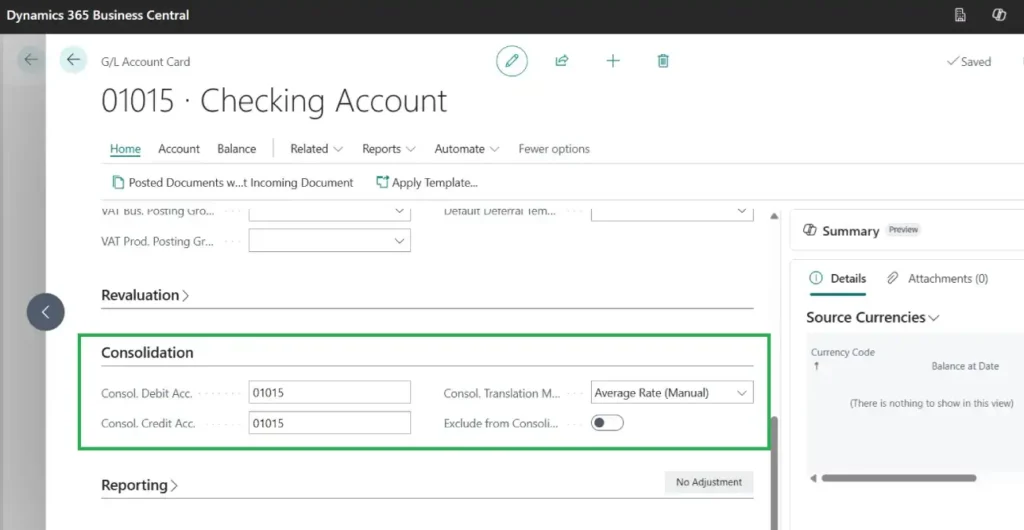
Each subsidiary’s G/L accounts need to know where their balances land in the consolidation company. Open the Chart of Accounts in each subsidiary, open an account card, and go to the Consolidation section. Three fields matter:
| Field | What It Does |
|---|---|
| Consol. Debit Acc. | The account in the consolidation company that receives this account’s debit balances. |
| Consol. Credit Acc. | The account that receives credit balances. Often the same account as the debit one, but they can differ. |
| Consol. Translation Method | How amounts in foreign currency are translated: Average Rate, Closing Rate, Historical Rate, and so on, per accounting standards. |
If the subsidiaries share the same chart of accounts as the consolidation company, this mapping is quick (each account maps to itself). If a subsidiary has a different chart, this mapping is exactly where you handle it, account by account.

Step 3: Set Up Business Units
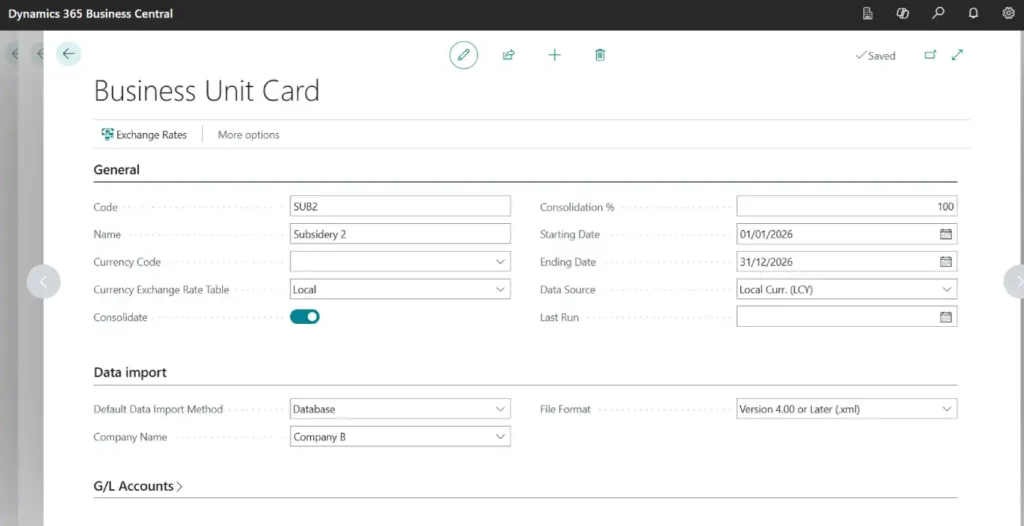
Now switch to the consolidation company and define each subsidiary:
- Press Alt + Q, search Business Units, and open the page
- Click New and fill in for each subsidiary:
- Code and Name, for example
SUB-UK - Consolidation %: 100 for wholly owned, or your ownership share (for example 60) for partial ownership
- Starting Date / Ending Date of the business unit’s fiscal year
- Data Import Method: this is the key choice, explained next
- Code and Name, for example
Database or API? Business Central gives two ways to reach a subsidiary’s data:
| Method | When to Use It |
|---|---|
| Database | The subsidiary is a company in the same environment. Just pick its Company Name on the business unit card. Simplest and most common. |
| API | The subsidiary lives in a different environment (for example another country’s environment). You paste its API endpoint and authenticate. |
For the API method, two extra steps in the subsidiary’s company: open Consolidation Setup, turn on Enable company as subsidiary (this allows the consolidation company to query it), and copy the API Endpoint shown there. Then paste that endpoint into the business unit card in the consolidation company and sign in when prompted the first time. A file-based route (export an XML from the subsidiary, import it in the consolidation company) also exists for setups where a direct connection isn’t possible.

Step 4: Currency and Exchange Rates
If a business unit keeps its books in a different currency from the consolidation company, set its Currency Code on the business unit card and maintain the consolidation exchange rates. Business Central uses the translation method you chose per G/L account (Step 2): typically an average rate for income statement accounts and the closing rate for balance sheet accounts, with historical rates for equity, in line with standard accounting practice.
Before each consolidation run, review the exchange rates for the period. Wrong or stale rates are the single most common cause of “the consolidated numbers look off” support calls.
Step 5: Test Before You Consolidate
Business Central lets you test the whole thing before posting anything, and you should, every time.
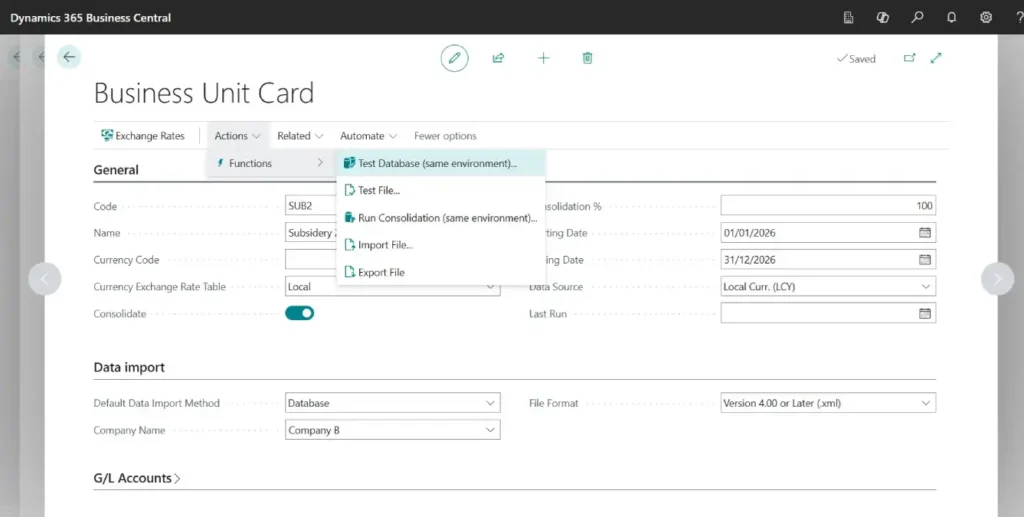
On the Business Units page, run Test Database (for same-environment units) or Test File (if consolidating from an exported XML file). The test checks the setup and data and reports discrepancies, for example missing consolidation accounts on a G/L account, or mismatched dimension setups, so you can fix them before the real run. A few minutes of testing here saves hours of untangling a bad consolidation later.

Step 6: Run the Consolidation
With setup done and tests clean:
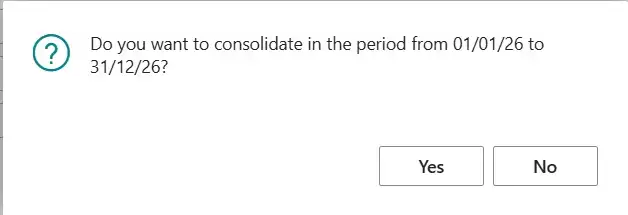
- In the consolidation company, open Business Units and choose the Consolidate action (or run the Import Consolidation batch job for file-based data)
- Set the Starting Date and Ending Date for the period to consolidate (typically the month or quarter just closed)
- Select which business units to include (you can consolidate all or a subset)
- Preview if offered, then run
Business Central reads each business unit’s G/L entries for the period, applies the consolidation percentage and currency translation, and posts the combined figures into the consolidation company’s accounts using the mapping from Step 2. You can re-run for a period if a subsidiary posts late adjustments; the process replaces that unit’s previously imported figures for the period.
📌 Timing tip: Consolidate only after the subsidiaries have finished their month-end close. Consolidating too early means re-running later when late entries land. Many groups set a simple rule: subsidiaries close by working day 5, consolidation runs on working day 6.
Step 7: Eliminate Intercompany Transactions
Here’s the part that makes consolidation accounting-correct rather than just added-up. If Company A sold goods to Company B, the group as a whole didn’t sell anything to the outside world, so that revenue (and B’s matching cost) must be eliminated from the consolidated figures. The same applies to intercompany receivables and payables, loans, and unrealized profit in stock.
In Business Central, you post eliminations as general journal entries in the consolidation company, usually to dedicated elimination accounts so they’re clearly visible. The practical flow:
- Identify intercompany balances (much easier if the subsidiaries post intercompany trade to dedicated IC accounts or use consistent dimensions)
- Open General Journals in the consolidation company and post the elimination entries for the period
- Keep each period’s eliminations documented so they can be reviewed and reversed cleanly next period if needed
📋 Real Project Note
The groups with painless consolidations all do the same thing: they make intercompany transactions identifiable at the source. Dedicated IC customer/vendor accounts, dedicated IC G/L accounts, or a consistent dimension for the counterparty company. Set that discipline up in the subsidiaries first, and eliminations become a ten-minute journal instead of a day of detective work.
Step 8: Consolidated Reports
With the consolidation run and eliminations posted, the consolidation company behaves like any other company for reporting. The most used outputs:
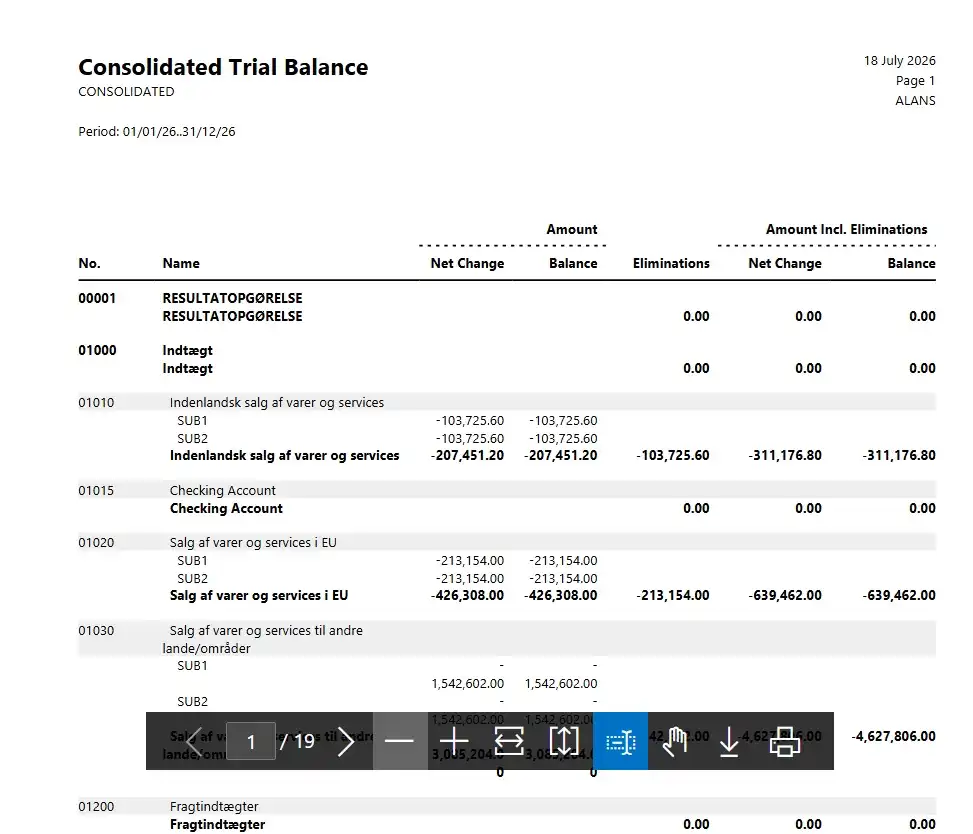
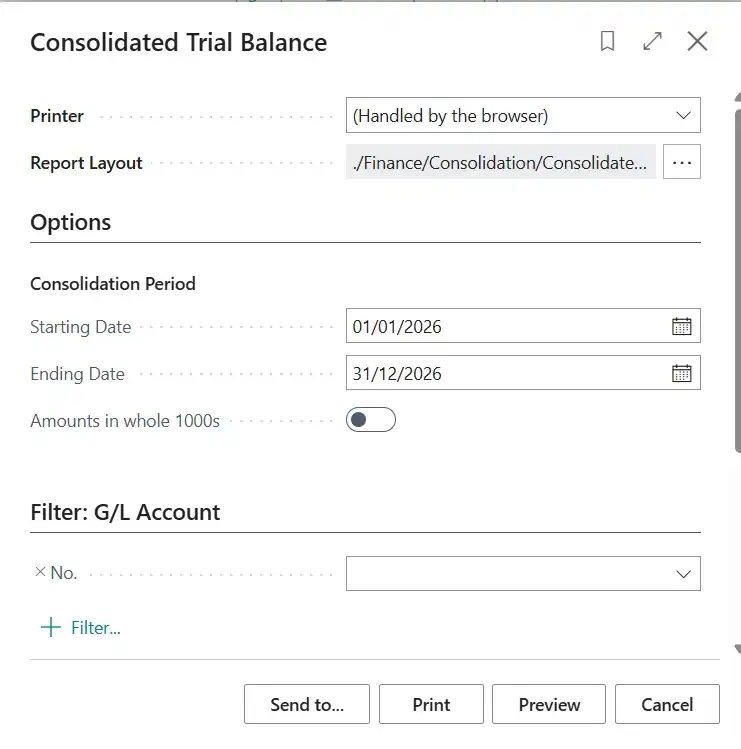
- Consolidated Trial Balance report: the classic first check, showing the combined balances (and, in the per-business-unit version, each unit side by side)
- Financial Reports (formerly Account Schedules): build the group P&L and balance sheet exactly how management wants to see them
- Analysis by Dimensions: slice the consolidated figures by department, project, or any dimension carried through



FAQ, Consolidation in Business Central
Do I need a special license for consolidation?
No separate module is required; consolidation is part of standard Business Central financials. You do need the consolidation company set up and users with permission to run it (for the API method, the user needs access to G/L entries, for example via D365 Basic and D365 Read permission sets).
Can I consolidate companies with different currencies?
Yes. Set the currency on the business unit card, maintain consolidation exchange rates, and choose a translation method per G/L account (average, closing, or historical rate). Business Central translates during the consolidation run.
Can I consolidate companies in different Business Central environments?
Yes. Use the API data import method: in each subsidiary, enable “Enable company as subsidiary” on the Consolidation Setup page and copy its API endpoint into the business unit card in the consolidation company. A file-based XML export/import route also exists.
How do I handle a company I only partly own?
Set the Consolidation % on that business unit card (for example 60). The consolidation then includes only that share of the unit’s balances.
Can I re-run a consolidation for a period?
Yes. If a subsidiary posts late adjustments, run the consolidation again for the period; the previously imported figures for that unit and period are replaced. This is exactly why the consolidation company must contain no other transactions.
Does Business Central eliminate intercompany transactions automatically?
Not automatically. You post elimination entries as general journals in the consolidation company. Making intercompany transactions identifiable in the subsidiaries (IC accounts or dimensions) makes this fast. The separate Intercompany feature helps structure IC trading day to day.
What’s the difference between consolidation and simply changing companies?
Switching companies shows one company at a time. Consolidation combines their figures into one set of group accounts, with ownership percentages, currency translation, and eliminations applied, which is what group reporting and auditors require.
Final Thoughts
Consolidation in Business Central turns group reporting from a spreadsheet marathon into a repeatable monthly routine: an empty consolidation company, well-mapped G/L accounts, a business unit per subsidiary, a test run, the consolidation itself, eliminations, and the reports. The setup takes some care the first time, especially account mapping and exchange rates, but once it’s in place, closing the group becomes a matter of days, not weeks.
Two habits make all the difference: keep the consolidation company free of operational transactions, and make intercompany activity identifiable at the source. Get those right and the rest follows.
Stay tuned to NavisionPlanet for more practical Business Central finance guides drawn from real project experience.
Note: Consolidation features and page names can vary slightly between Business Central versions, and group accounting treatments (translation methods, eliminations) should follow your accounting standards. Confirm specifics with your auditor or partner for statutory consolidations.
📖 Related guides on Navision Planet:
→ Reminders and Finance Charge Memos in Business Central
→ General Journal Creation and Posting in Business Central
→ Number Series Setup in Business Central
→ User Setup & Permission Sets in Business Central