Every business faces the same challenge: What if a customer buys more than they can actually pay for?
That’s where Business Central helps. Two simple but powerful features Credit Limits and Customer Blocking give you control over how much risk you want to take with each customer.
Table of Contents
What is a Credit Limit?
A credit limit is basically the spending cap you set for a customer. It tells Business Central, “This customer can only owe me this much before I stop selling to them.”
Example: If you set a credit limit of 1,00,000 for a customer and they already owe 95,000, BC will warn you before you create another big order.
It doesn’t mean you can’t sell to them it just alerts you so you can make the right call.
How to Set It Up in Business Central
Use Tell Me (Alt + Q) and type Customers.
Tip: You may try Business Central Keyboard shortcuts for faster navigation.

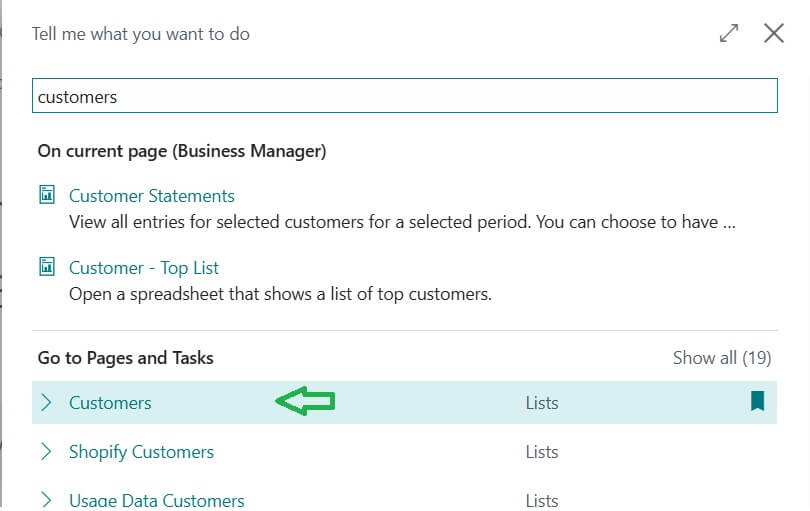
- Open the Customer Card.
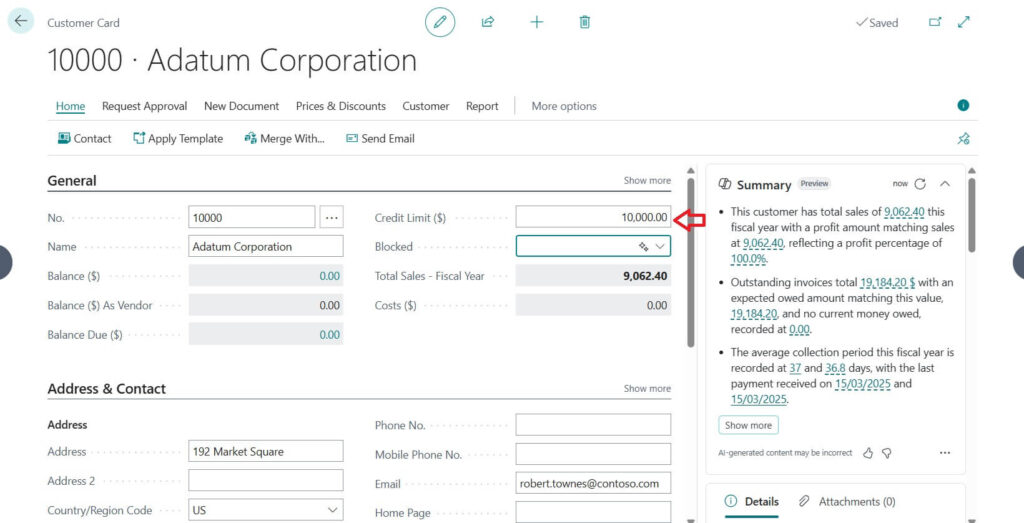
- Look for the Credit Limit (LCY) field.
- Enter the maximum amount you’re comfortable with.
For example, Please find the following image with Credit Limit updated as 10,000

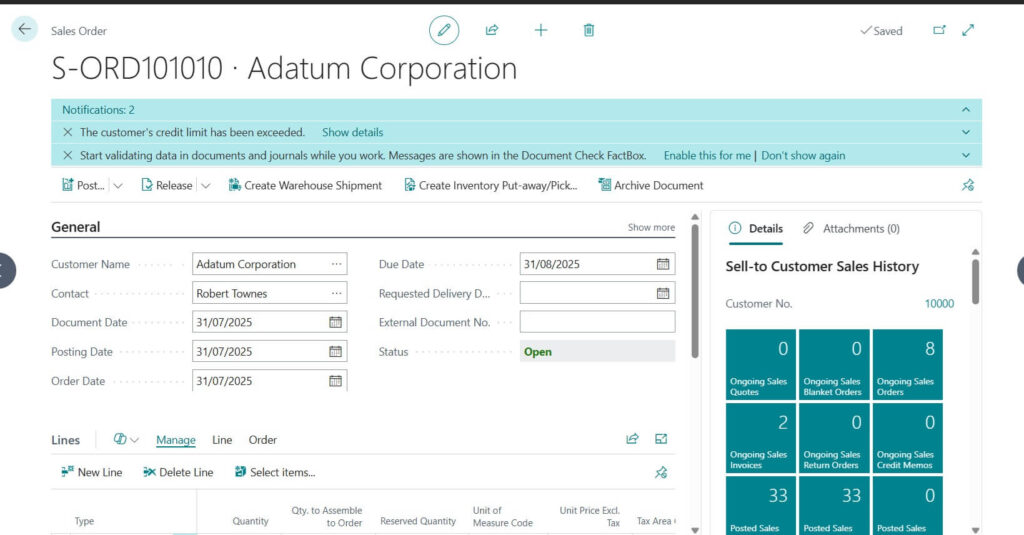
From that point on, BC will automatically check the balance every time you create an order, invoice, or shipment.
What Happens If the Limit Is Crossed?
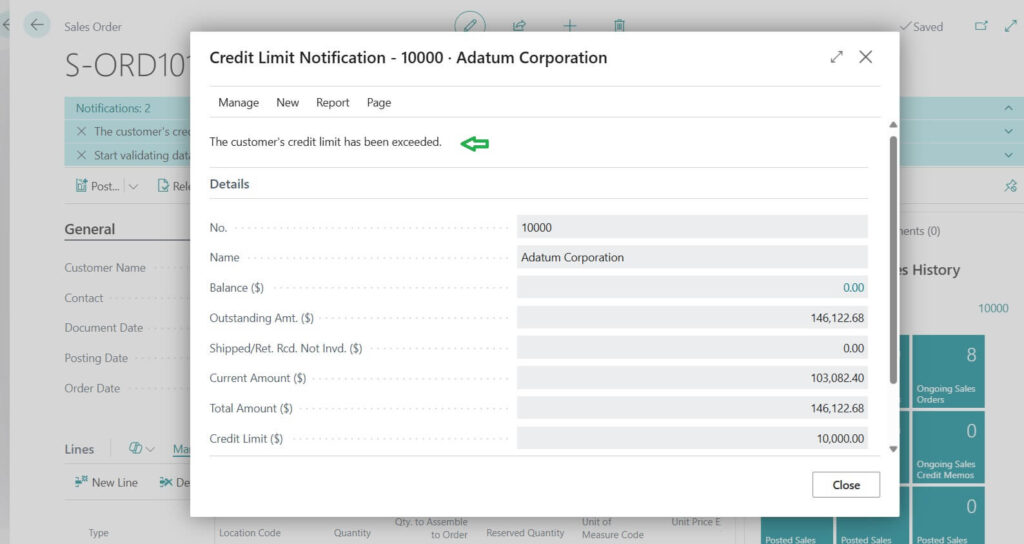
If the customer goes over their credit limit, BC shows a message. Depending on your setup, it might be:
- A warning (so you can still go ahead if you want).
- A hard stop (no new orders until the balance is reduced).
This way, you don’t have to rely on memory or manual checks BC handles it for you.


What is Customer Blocking?
Sometimes, it’s not just about a limit. There may be situations where you want to stop all or some transactions with a customer. That’s where Customer Blocking comes in.
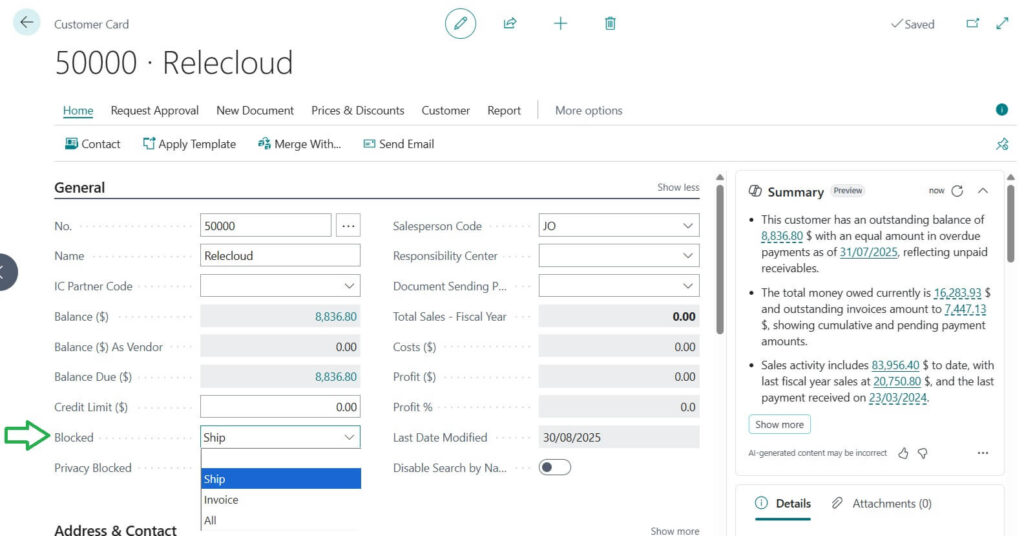
You can block a customer in three different ways:
- Block All – No sales documents can be created for this customer.
- Block Shipments – You can make sales orders, but you can’t ship the goods.
- Block Invoices – You can’t post sales invoices for this customer.

When Would You Use Blocking?
- A customer has overdue payments and you don’t want to take more risk.
- The account is closed because you no longer work with them.
- There are legal or compliance reasons that require stopping business.
Think of it as a safety switch that gives you full control.
Best Practices
- Always set credit limits based on the customer’s track record.
- Use blocking sparingly, and only when the risk is too high.
- Review limits regularly especially for large or long term customers.
- Make sure your sales team understands the warnings before confirming orders.
Final Thoughts
Cash flow is the lifeblood of any business. By using Credit Limits and Customer Blocking in Business Central, you can protect your company from unnecessary risks, while still maintaining good customer relationships.
It’s a simple setup, but it can save you from big financial headaches later.
FAQ: Credit Limit & Customer Blocking in Business Central
Credit Limit sets the maximum amount a customer can owe before warnings or restrictions appear.
Customer Blocking stops specific actions (like shipments or invoices) for that customer.
Yes. Business Central shows a warning, but you can override it if your role and setup allow it.
If you select Block All, you cannot create any new sales documents (orders, invoices, or shipments) for that customer.
Yes. You can choose Block Shipments or Block Invoices depending on what restriction you need.
No, BC won’t automatically block customers. You need to manually set the block on the customer card if required.
Both are useful, but for everyday risk management, credit limits are more flexible. Blocking is usually used for serious cases like default risk or legal issues.
Stay connected with NavisionPlanet for more simple, step by step functional guides on the Business Central Sales Module.