If your business runs late into the night, you’ve probably faced the challenge of recording sales that happen after 12 AM. By default, these transactions show up in the next day’s report, which makes daily sales tracking confusing. The good news is that Midnight Sales in LS Central can be managed easily using the Retail Calendars feature. In this guide, I will show you step by step how to set up your system so that late night sales are counted in the previous day’s totals.
Table of Contents
Midnight Sales in LS Central
Have you ever faced this problem?
Your restaurant, bar, or retail store stays open past midnight, but when you check the sales report, all those late-night transactions appear in the next day’s sales. Frustrating, right? It looks like sales dipped yesterday and magically jumped today – not the story you want to tell your finance or operations team.
Don’t worry, LS Central has a smart way to handle this with a feature called Retail Calendars. Let me walk you through it.
Why This Matters
This situation is super common in hospitality – bars, lounges, or high-end restaurants that serve customers until 2 or 3 AM. Without the right setup, your revenue gets split across two days, making reporting messy. But with Retail Calendars, you can tell LS Central:
“Hey, treat everything until 3 AM as yesterday’s sales.”
Neat, right?
How to Record Midnight Day Sales as Previous Day Sales ?
Following are the step to configure the same in LS Central product in simple way.
Step 1: Search for Retail Calendar
In LS Central, head to the search bar and type Retail Calendar.
You’ll land on the setup page where you can create a new calendar.


Tip: You may try Business Central Keyboard shortcuts for faster navigation.


Step 2: Create a New Calendar


Set Calendar Type to Opening Hours.
Set Group Type to Store.
This tells LS Central that you’re defining special store timings.


Step 3: Define Opening Hours
On the Opening Hours tab:
Add your start date and end date.
Enter the time range (for example, 6:00 AM to 2:00 AM).
Make Sure to choose Include All Week Days for considering this time for all week days. If you want to change the calendar time in between for some period then mention in new line also make sure to mention Ending Date.
Don’t forget to check the tick in the Midnight Open checkbox.


This checkbox is the magic that lets LS Central shift sales correctly.
Step 4: Define Closing Hours
Switch to the Closed Hours tab:
Enter the same start and end dates.
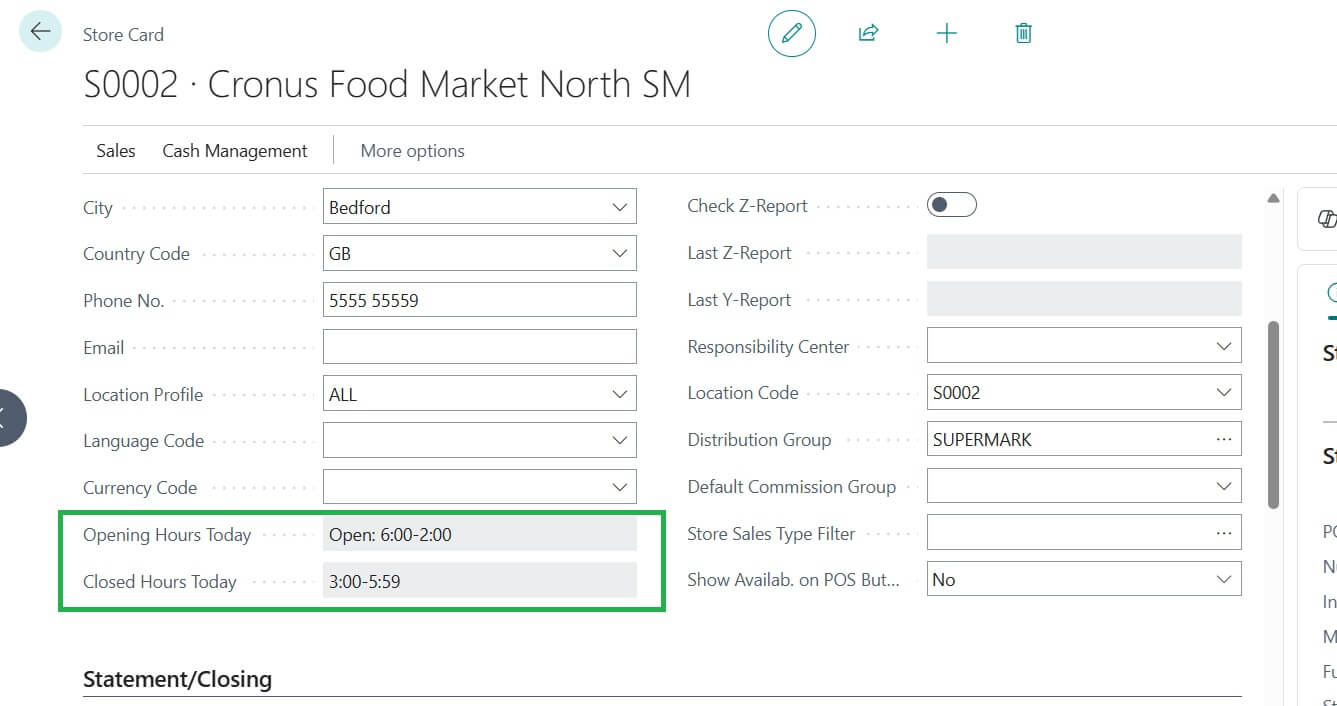
Add your closing time (for example, 3:00 AM to 5:59 AM).


Note: This is optional setup without this setup also will work. However if provided better.
Step 5: Attach Calendar to Store
Go to your Store Card and select the calendar you just created.
That’s it! Now LS Central knows how to treat sales that happen after midnight.


Test It Out
Try making a test transaction after midnight – say 12:30 AM.
You’ll notice that LS Central records it as part of the previous day’s sales.
Final Thoughts
This little tweak saves you from big reporting headaches. Your sales data stays clean, accurate, and easier to explain to management.
Have you tried this setup before? Or do you face other reporting challenges with late-night sales? Drop your experience in the comments – I’d love to hear how your business handles it.
FAQs
Following are the commonly asked question here
Because the system by default treats every new calendar day (after 12 AM) as a new sales day, unless you configure Retail Calendars.
Retail Calendars let you define store opening and closing hours, including midnight operations, so sales data reflects correctly in reports.
Yes, you can create and assign Retail Calendars to multiple store cards depending on their operating hours.
Hospitality, restaurants, bars, nightclubs, and 24×7 convenience stores.
Yes, the Retail Calendar feature exists in LS NAV 2018 and continues in LS Central.