
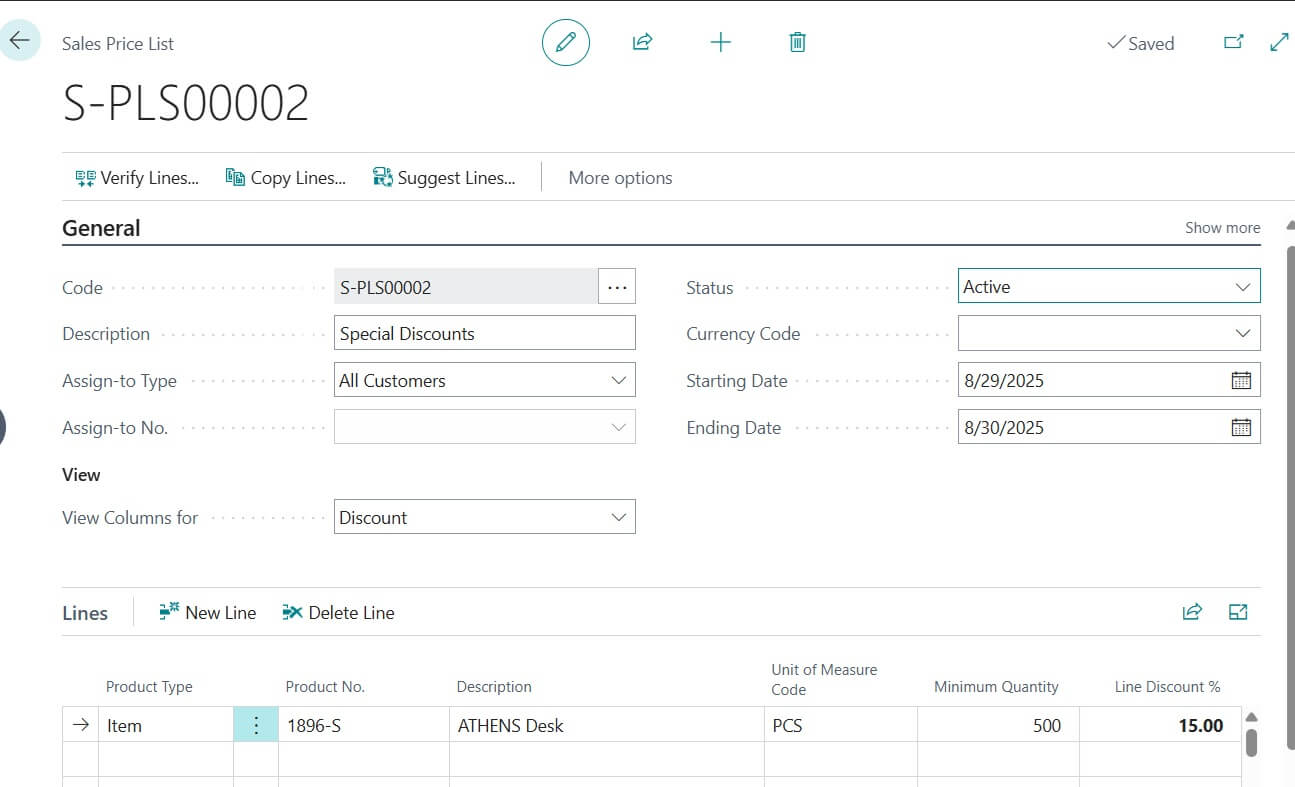
Setting up price lists and discounts in Business Central (BC) helps you control how much you charge customers and what special offers they get. Instead of changing prices every time, you can set rules once, and BC will apply them automatically.
Let’s break this down in a simple way
Table of Contents
What is a Price List in Business Central?
A Price List is like your company’s price book. It tells BC how much to charge for items, services, or customers in different situations.
Examples:
- Standard price list for all customers.
- Special price list for wholesale buyers.
- Seasonal price list (like for Diwali sales or year end offers).
How to Setup a Price List in BC
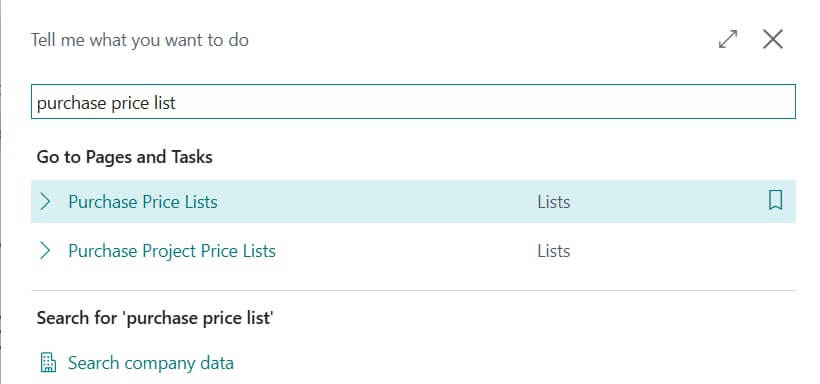
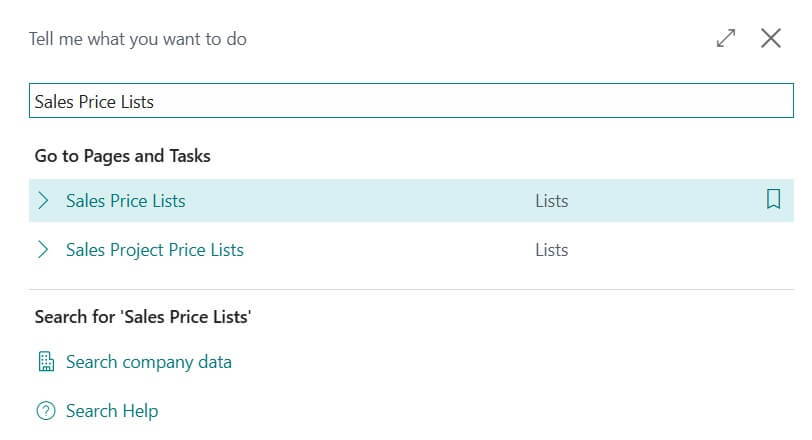
Open Price Lists Page
- Use Tell Me (Alt + Q) and type Price Lists.
Tip: You may try Business Central Keyboard shortcuts for faster navigation.
- Choose Sales Price Lists or Purchase Price Lists depending on whether you’re selling or buying.


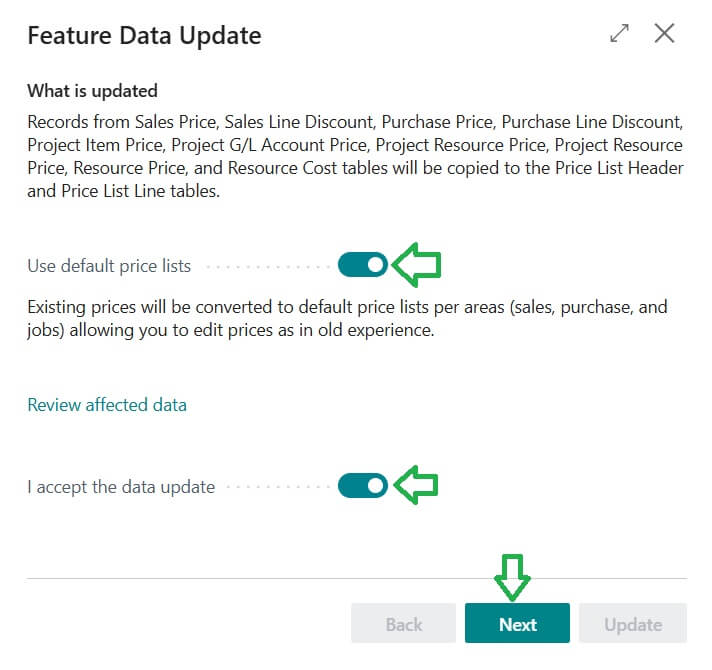
Note:
Since this feature is not yet enabled for all users by default, you need to enable it if you get the following error message when opening the ‘Purchase Price List‘ or ‘Sales Price List’ page.“




Sales Price List
Create a New Price List
Following steps mentioned how to create new Sales Price List.


Click New.
Add details:


Update Status = Active to activate the price

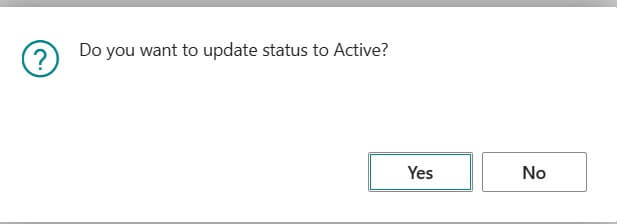
Press “Yes” to activate the price.
Name/Code (e.g., “Retail 2025”)
Currency (e.g., INR, USD)
Starting/Ending Date (validity period)
Add Items or Services
Select the item or service.
Enter the price you want to apply.
Choose if it’s for all customers or only for specific customer groups.


Tip: If you want to change Unit Price then directly change over here and click on Verify Lines to activate the price.
Purchase Price List
Following steps mentioned how to create new Purchase Price List.
Purchase price list sample details as follows.

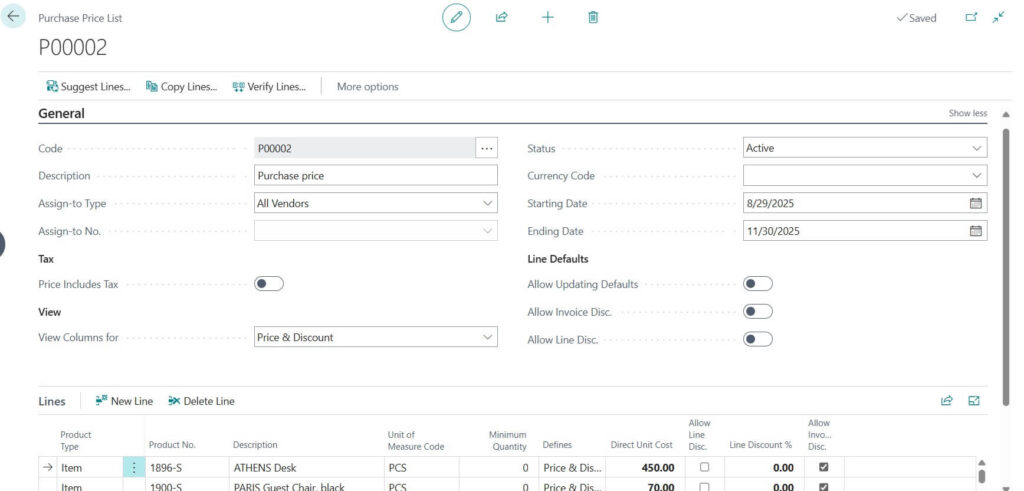


You may find the Purchase Prices from Item card -> Prices & Discounts -> Purchase Prices


Purchase Price list working also similar to Sales Price list.
What About Discounts?
Discounts work together with price lists. You can set up:
- Line Discounts -> For a specific product (e.g., 10% off Item A if buying 100+ units).
- Invoice Discounts -> For the total invoice (e.g., 5% off if invoice is above 50,000).
- Special Offers -> Discounts for selected customers, time periods, or campaigns.
How to Setup Discounts in BC
Go to Sales Line Discounts or Sales Invoice Discounts.
Create a new rule:
- Select the item or customer.
- Enter discount % or amount.
- Define conditions (minimum quantity, order amount, or valid dates).
- Save and assign it to your customer(s).
Example:
Customer buys 500 units of Item X -> 15% discount.
Customer’s invoice value > ₹1,00,000 -> 5% discount.


Best Practices
- Use Customer Groups: Instead of adding discounts to each customer, group them (Retail, Wholesale, Export).
- Set Dates Clearly: Always add start and end dates to avoid confusion later.
- Test First: Post a sample sales order to check if BC is applying the right price and discount.
- Keep It Organized: Don’t create too many price lists use clear names (Retail2025, Export2025).
Why It Matters
With Price Lists and Discounts set up in Business Central:
- Your sales team doesn’t need to manually change prices.
- Customers get accurate pricing every time.
- You avoid mistakes and keep your pricing strategy under control.
Final Tip: Combine price lists with Customer Posting Groups and Dimensions for a complete sales + finance setup. This makes reporting, billing, and profitability analysis much easier.
FAQ: Price List and Discount Setup in Business Central
A Price List is a setup that defines how much you charge customers for items or services. You can create different price lists for retail, wholesale, export, or seasonal sales.
Line Discount applies to a specific item on a sales line (e.g., 10% off Item A if buying 100 units).
Invoice Discount applies to the whole invoice amount (e.g., 5% off if the invoice is above ₹50,000).
Yes, a customer can be linked to a specific price list, but you can also create rules for customer groups. BC then chooses the most relevant price list based on conditions.
Yes, you can set start and end dates so that promotions or seasonal pricing automatically stop after a certain period.
Yes! Business Central first checks the price list, then applies any discounts (line or invoice) you have defined.
If you don’t use them, you’ll need to manually enter prices and discounts for every sales order, which increases errors and slows down invoicing.
Stay tuned to NavisionPlanet for more simple, step-by-step functional guides / Sales Module on Business Central.