Opening a New Fiscal Year

To open a new Fiscal Year you have to follow following 5 steps.
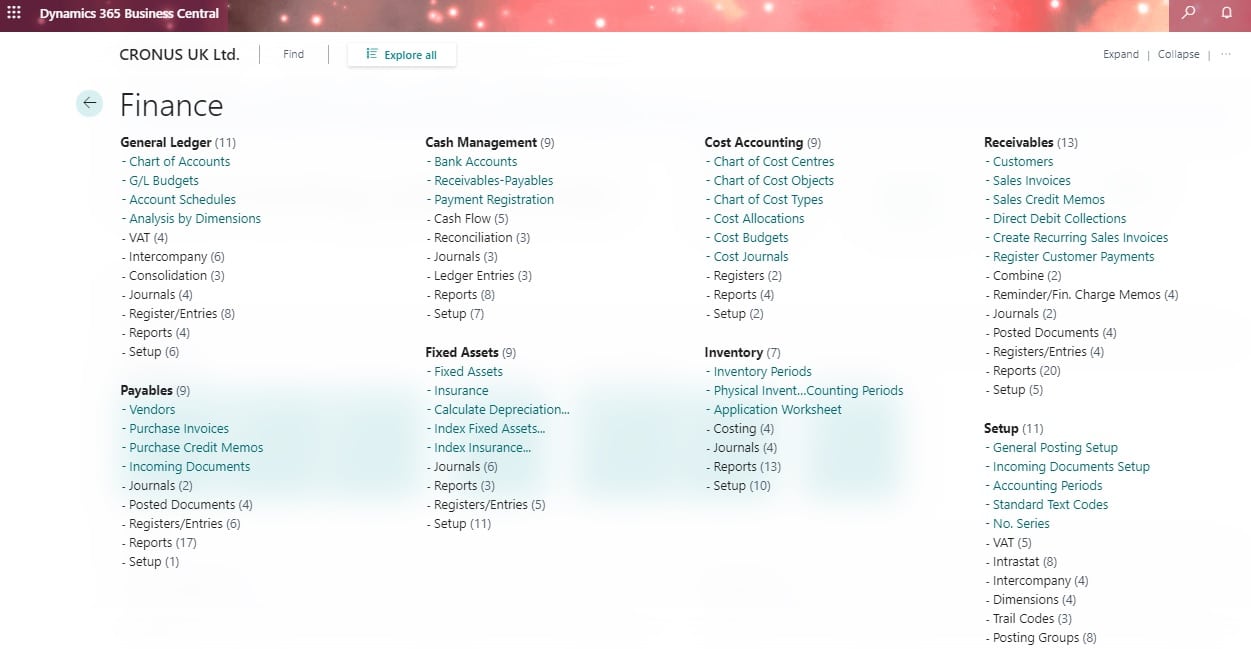
- Open the Accounting Periods window( Financial Management –> Setup–> Accounting Periods).
- Click Create Year.
- On the Options tab, define the structure of the fiscal year. The fiscal year is normally 12 periods of one month each, but you can also divide it in other ways.
- Fill in the fields. For Help about a specific field, click the field and click F1.
- Click OK.
The program creates the accounting periods and shows the result. It fills in the Starting Date field and fills in the Name field with the name of the month from the starting date.
After the last period in the fiscal year, the program inserts an accounting period with a check mark in the New Fiscal Year field.
After the last period in the fiscal year, the program inserts an accounting period with a check mark in the New Fiscal Year field.
Trademarks & Screenshots: Microsoft, Dynamics 365, Business Central, Dynamics NAV, and related names are trademarks of Microsoft Corporation. LS Central and LS Retail are products of LS Retail. Screenshots are used for educational and illustrative purposes only. Navision Planet is an independent resource and is not affiliated with, endorsed by, or sponsored by Microsoft or LS Retail. All product names, logos, and brands are the property of their respective owners.