How to resolve Download Symbol Error for Old Versions
I am getting Multiple request on errors getting on VS Code download symbols. Most of the common errors discussed here. First of all hope you checked my VS Code Configuration Guide for first time user , if not recommended all to check that post first. I believe most of your errors will get resolved by following that steps.
Old VS Code Versions not showing on project Creation
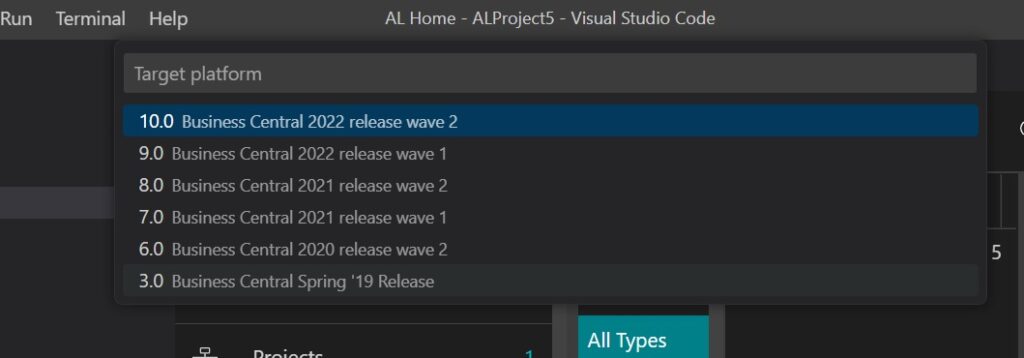
This is the known issue after AL programing 10 version update. After this update most of the older BC AL versions are removed on selection like 1, 2, 4,5 etc.

Solution for this issue can be done by following below steps
- Open VS Code Application
- Navigate to Extensions List
- Choose AL Language Extension
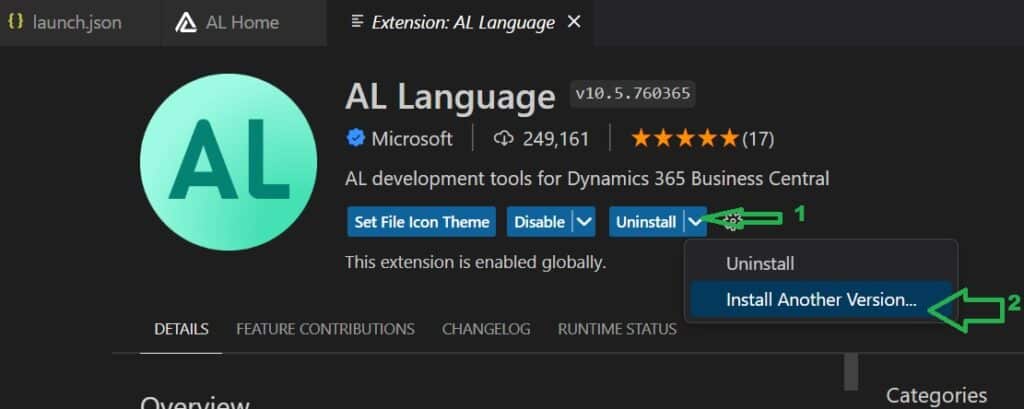
- Click on down arrow near “Uninstall” button like below image
- Choose Install another version option.
- Select version older than 10.
- Once selected it will start installing the same
- Once Installation completed required to close the session and open to reflect the changes.


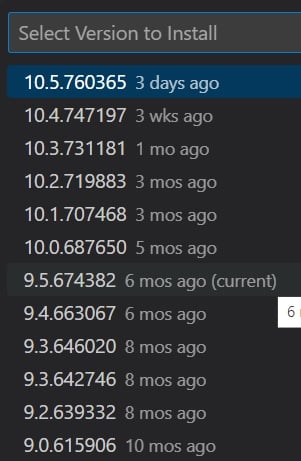
Once installed older VS Code Version, you may able to choose older Business Central AL editions.
Please find the following screen with Target version selection screen


Hope this helps.
Let us know if you are facing any other errors.