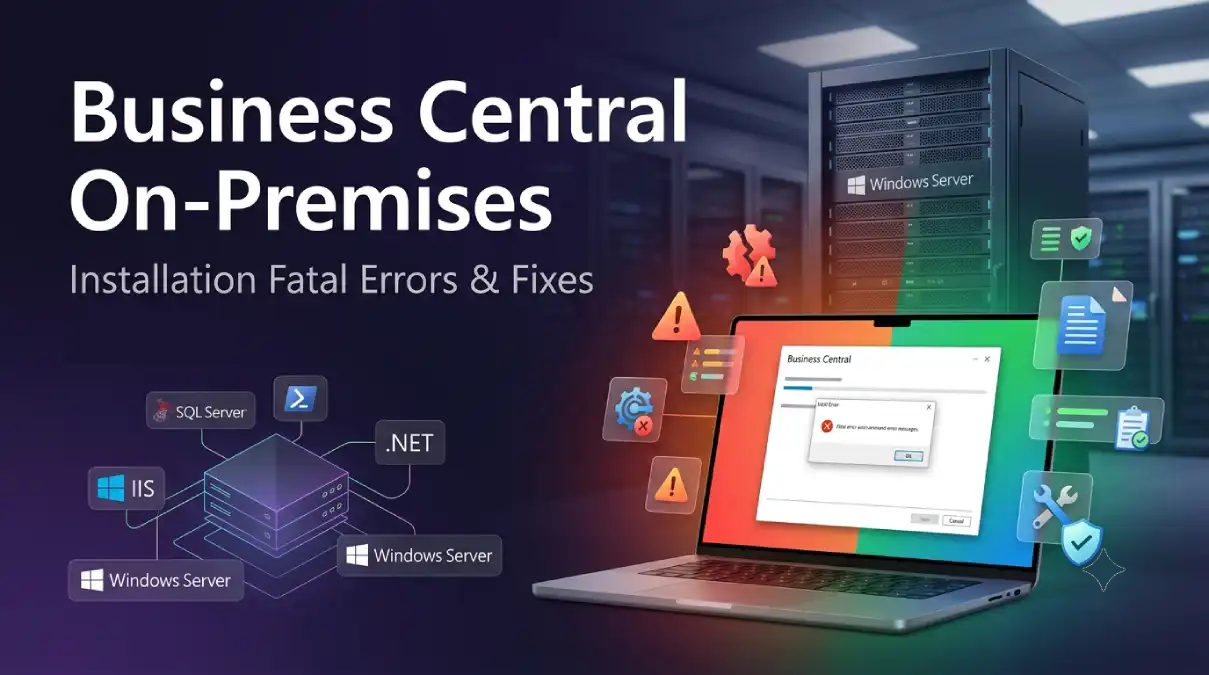
Quick Answer
Most Business Central on-premises “Fatal error during installation” messages come from a few causes: missing or misconfigured IIS features, a .NET / Windows Server Hosting version clash, a PowerShell 7 conflict (version 24.1), an unsupported SQL Server edition, or the Server service failing to start (wrong service account, port conflict, or firewall). The fix is almost always in the installation log or Windows Event Viewer, which tell you the real cause. This guide covers each error and its solution.
Installing Business Central on-premises is usually smooth, until you hit the dreaded “Fatal error during installation” screen. It’s a frustrating message because it rarely tells you what actually went wrong. The good news: these errors come from a short list of known causes, and once you know where to look, most are quick to fix.
This guide covers the most common on-premises installation fatal errors, the exact messages you’ll see, and how to resolve each one. We’ll also show you the two places that always hold the real answer: the install log and the Windows Event Viewer.
📌 Before anything else, read the log. The install error dialog has a link to the log file, and Windows Event Viewer (Application log) holds the detailed reason. The fatal error screen just says “something failed.” The log says what failed. Nine times out of ten, the fix is obvious once you read it.
📋 Errors Covered
- Web Server Components: Fatal error (IIS / .NET)
- .NET Windows Server Hosting failed / error 1638
- PowerShell 7 fatal error (version 24.1)
- Server Components: service failed to start
- SQL Server / database package failed
- “Feature name IIS-WindowsAuthentication is unknown”
- General Fix Steps (Any Fatal Error)
- FAQ


Table of Contents
1. Web Server Components: Fatal Error (IIS / .NET Clash)
Web Server Components, Fatal error during installation.
The most common trigger: installing the Web Server components on a machine that already has the .NET 6.0 SDK or Core Runtime installed. The installer’s registry checks for IIS prerequisites fail, and the web components roll back.
How to fix it:
- Confirm IIS is installed and enabled with the required features (see error 6 below for the IIS feature list).
- Check the install log for the failing registry search (for example, it can’t find the
ASPNETorNetFxExtensibilityIIS components). - Install the correct ASP.NET Core Hosting Bundle that matches your Business Central version, so the web server can host the app.
- If a newer .NET is already present and clashing, align the Hosting Bundle version rather than relying on the installer’s default.
2. “.NET Core Windows Server Hosting failed” or Error 1638
Package Microsoft .NET Core Windows Server Hosting failed with error (error code 1638)
The cause: a newer minor version of Windows Server Hosting is already installed on the server. The Business Central installer tries to install its own specific version (for example 2.1.14), and because a newer minor version is already there, it fails and rolls back.
How to fix it: manually install Windows Server Hosting version 3 or later before running the Business Central install, or uninstall the conflicting Windows Server Hosting first. Using the installer from a later Business Central version (18.1 or newer) also avoids this on affected builds.
3. PowerShell 7 Fatal Error (Version 24.1 Specifically)
Setup Components, PowerShell 7, Fatal error during installation. A newer version of PowerShell is already installed.
The cause: a known issue in the version 24.1 setup.exe. The installer should skip installing PowerShell 7 if the machine already has version 7.4.2 or later. In 24.1, it wrongly tries to install PowerShell anyway, and fails.
How to fix it: this is a bug in the 24.1 installer specifically. The practical workarounds are to use a later corrected build of the installer, or ensure the machine’s PowerShell state matches what the installer expects. If you already have PowerShell 7.4.2+ and hit this, using an updated setup package is the clean fix.
💼 From 18 Years in the Field
When an install error appears only on one specific version like 24.1, always check whether it’s a known installer bug before spending hours on your own environment. Microsoft keeps a “known issues” list for on-premises. Checking it first has saved me many wasted evenings chasing a problem that was never mine to fix.
4. Server Components: “The service failed to start”
Server Components, Fatal error during installation. The service ‘Microsoft Dynamics 365 Business Central Server [BCxxx]’ failed to start.
This one has three usual causes, all fixable:
| Cause | Fix |
|---|---|
| Wrong service account password | The account running the service has an incorrect or expired password. Correct it in the service settings. |
| Port conflict | Another service is using the same port. Change the Business Central server ports or free the conflicting one. |
| Firewall setting mismatch | You asked to open a port in Windows Firewall, but the firewall is disabled. Enable the firewall or don’t request the port opening. |
Where to look: open Windows Event Viewer, then the Application log. The generic “failed to start” message won’t tell you which of the three it is, but the Event Viewer entry will. Fix that specific cause, then re-run or repair the install.
5. SQL Server or Database Package Failed
Package Cronus Sample Database for Microsoft Dynamics 365 Business Central failed with error.
The most common cause: an unsupported SQL Server edition or version. Business Central has minimum SQL requirements, and an older SQL version fails the install. Note you do not need SQL Enterprise: SQL Express is fully supported, but it must be a supported version.
How to fix it: confirm your SQL Server meets the minimum for your Business Central version (for example, SQL Server 2016 SP1 or later was the floor for some builds; newer BC versions require newer SQL). Install a supported SQL edition (Express, Standard, or Enterprise all work), then re-run the install. If the sample database package fails, fixing the underlying SQL issue usually clears the follow-on Server Components error too.
6. “Feature name IIS-WindowsAuthentication is unknown”
IIS prerequisites for Web Server Components… Feature name IIS-WindowsAuthentication is unknown.
The cause: IIS isn’t installed, or the required IIS role features aren’t enabled, so the installer can’t find them.
How to fix it: install IIS with the features Business Central needs before running setup. The key ones include Windows Authentication, ASP.NET, .NET Extensibility, IIS Management Console, Static Content, Default Document, and Request Filtering. You can enable these through “Turn Windows features on or off,” or via Server Manager on Windows Server. Once IIS and its features are present, re-run the Web Server components install.
⚙️ Tip: On a fresh Windows Server, installing the full “Web Server (IIS)” role with the common features first prevents most Web Server Components errors before they happen. Set up IIS, then install Business Central.
General Fix Steps (For Any Fatal Error)
If your exact error isn’t listed above, this sequence resolves the large majority of on-premises install failures:
- Read the log. Open the log linked in the error dialog, and check Windows Event Viewer, Application log. Find the real failing component.
- Check system requirements. Confirm your Windows Server, SQL version, and .NET are all supported for your exact Business Central version.
- Install prerequisites first. IIS (with features), the correct ASP.NET Core Hosting Bundle, and a supported SQL edition should be in place before setup.
- Run setup as Administrator. Right-click, Run as administrator, to avoid permission-related rollbacks.
- Try Repair. Re-run setup.exe and choose the Repair option, which fixes many partial or rolled-back installs.
- Check the known issues list. If the error is version-specific (like the 24.1 PowerShell bug), it may be a documented installer issue with a known workaround.
📋 Real Project Note
On a clean server, the order of installation matters. Install IIS and its features first, then SQL Server, then the ASP.NET Core Hosting Bundle, and only then Business Central. Most fatal errors I’ve seen come from installing Business Central before its prerequisites are properly in place. Get the order right and the install usually just works.
FAQ, Business Central On-Premises Installation Errors
Where do I find the real reason for a fatal install error?
Two places: the log file linked in the error dialog, and Windows Event Viewer (Application log). The fatal error screen is generic; these logs name the actual failing component and usually make the fix obvious.
Why does the Web Server Components install fail?
Most often because IIS isn’t installed with the required features, or because a newer .NET runtime on the machine clashes with the installer’s checks. Install IIS with the needed features and the correct ASP.NET Core Hosting Bundle, then retry.
How do I fix the PowerShell 7 fatal error on version 24.1?
It’s a known bug in the 24.1 installer, which tries to install PowerShell 7 even when a newer version (7.4.2+) is already present. Use a corrected later build of the installer, or align the machine’s PowerShell state with what setup expects.
Do I need SQL Server Enterprise for Business Central on-premises?
No. SQL Express is fully supported, as are Standard and Enterprise. What matters is the SQL version: it must meet the minimum for your Business Central version. An unsupported older SQL version is a common cause of the database package failing.
The service failed to start during install. What now?
Check Windows Event Viewer, Application log, for the specific reason. It’s usually a wrong service account password, a port conflict, or a firewall setting mismatch. Fix that cause, then repair or re-run the install.
Should I run the installer as administrator?
Yes. Always right-click setup.exe and choose Run as administrator. Missing permissions cause rollbacks that look like fatal errors but are really just access problems.
Final Thoughts
A “Fatal error during installation” in Business Central on-premises looks alarming, but it almost always traces back to a short list of causes: IIS, .NET or Hosting Bundle versions, PowerShell conflicts, SQL edition, or the service failing to start. The single most useful habit is reading the install log and Event Viewer first, because they tell you exactly what failed instead of leaving you guessing.
Install the prerequisites in the right order, match every component to your Business Central version’s requirements, and most installs go through cleanly. When they don’t, the fixes above cover the vast majority of cases.
Stay tuned to NavisionPlanet for more practical Business Central and Dynamics NAV guides drawn from real project experience.
Note: Exact prerequisites and installer behavior change between Business Central versions. Always confirm the system requirements and known issues for your specific version on Microsoft Learn before installing in production.
📖 Related guides on Navision Planet:
→ Business Central Known Issues List (live updates)
→ Business Central Running Slow? Causes and Fixes
→ Email Account Setup in Business Central
→ Business Central Keyboard Shortcuts