Imagine a customer buys something at the till, taps their card, and before they even leave the counter their phone buzzes with a friendly “Thank you for your payment of INR 1,250 at Downtown Store.” That small touch builds trust, reduces payment disputes, and feels premium. In this guide, I will show you exactly how to build that using a Business Central API integration in AL, triggered automatically from LS Central the moment a POS payment completes.
This is a complete, practical walkthrough based on my 18+ years of Dynamics NAV, Business Central, and LS Central development. You will get the setup table, secure key storage, the HttpClient code that calls an SMS gateway, and the event subscriber that fires on payment. Moreover, the same pattern works for WhatsApp, email, or any REST API, so you can reuse it well beyond SMS.
📝 Note: LS Central is an AL app built on top of Business Central. Therefore, this is really a Business Central API integration that hooks into an LS Central POS event. If you are new to AL development, first read my Business Central technical guide.
Table of Contents
Solution Architecture: How the Business Central API Integration Works
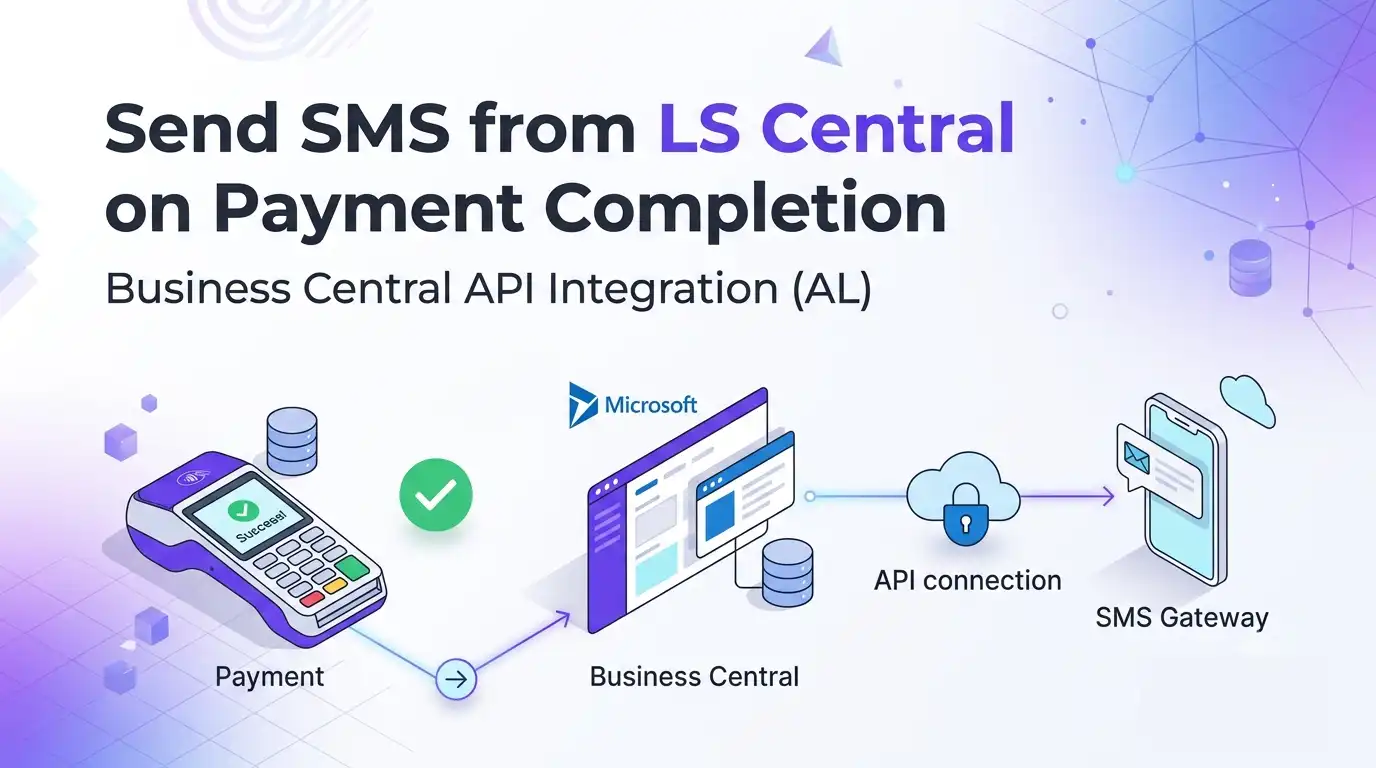
Before writing any code, let us understand the flow. The design keeps LS Central untouched and puts all our logic in a separate, upgrade-safe extension. Here is the end-to-end sequence:
- A cashier completes a payment on the LS Central POS.
- LS Central raises a payment/transaction event (an integration event).
- Our extension subscribes to that event and reads the amount, store, and customer phone number.
- Our SMS codeunit builds a message and calls the SMS gateway using
HttpClient. - The gateway sends the SMS, and we log the result (and telemetry) for troubleshooting.
↓ (integration event)
[Your Extension: Event Subscriber]
↓ read amount, store, phone
[SMS Mgt Codeunit] → build message
↓ HttpClient POST (REST)
[SMS Gateway API] → delivers SMS to customer
↓ response
[SMS Log table + Telemetry]
❗ Important: Never block the sale on the SMS call. If the gateway is slow or down, the cashier must still finish the transaction. We therefore design the SMS send to fail silently and log the error, never to throw an error that stops the POS.
Prerequisites for This Business Central API Integration
- A Business Central environment with LS Central installed (sandbox for development).
- VS Code with the AL Language extension and LS Central symbols downloaded.
- An SMS gateway account with a REST API (Twilio, MSG91, Vonage, Textlocal, Gupshup).
- The gateway’s API endpoint, API key/token, and sender ID.
- A free object ID range. This example uses 50130–50139.
💡 Tip: Use a gateway with a simple JSON REST API for your first build. Providers like MSG91 or Twilio return clear JSON responses, which makes debugging your Business Central API integration far easier than SOAP or fixed-format APIs.
Step 1: Create the SMS Setup Table
First, we store configuration in a setup table so nothing is hardcoded. Notice we do not store the API key here. Instead, we will keep the key in Isolated Storage for security, which I cover in Step 3.
table 50130 "SMS Setup"
{
    Caption = 'SMS Setup';
    DataClassification = CustomerContent;

    fields
    {
        field(1; "Primary Key"; Code[10])
        {
            Caption = 'Primary Key';
        }
        field(10; "Enabled"; Boolean)
        {
            Caption = 'Enable Payment SMS';
        }
        field(20; "API Endpoint"; Text[250])
        {
            Caption = 'API Endpoint URL';
        }
        field(30; "Sender ID"; Text[20])
        {
            Caption = 'Sender ID';
        }
        field(40; "Message Template"; Text[250])
        {
            Caption = 'Message Template';
            // Placeholders: %1 = amount, %2 = store, %3 = receipt no.
        }
        field(50; "Min. Amount for SMS"; Decimal)
        {
            Caption = 'Minimum Amount for SMS';
            MinValue = 0;
        }
    }

    keys
    {
        key(PK; "Primary Key") { Clustered = true; }
    }

    procedure GetSetup()
    begin
        if not Rec.Get() then begin
            Rec.Init();
            Rec.Insert();
        end;
    end;
}
The Message Template field lets store managers change the wording without a code change. For example: “Thank you! We received %1 at %2. Receipt: %3.”
Step 2: Store the API Key Securely in Isolated Storage
Secrets must never sit in a normal table. Therefore, we use Isolated Storage, which is encrypted and scoped to our extension.
codeunit 50131 "SMS Key Mgt."
{
    var
        KeyTok: Label 'SMS_API_KEY', Locked = true;

    procedure SetApiKey(ApiKey: Text)
    begin
        if not IsolatedStorage.Set(KeyTok, ApiKey, DataScope::Company) then
            Error('Could not save the API key.');
    end;

    procedure GetApiKey(): Text
    var
        ApiKey: Text;
    begin
        if IsolatedStorage.Get(KeyTok, DataScope::Company, ApiKey) then
            exit(ApiKey);
        exit('');
    end;

    procedure HasApiKey(): Boolean
    begin
        exit(IsolatedStorage.Contains(KeyTok, DataScope::Company));
    end;
}
⚠️ Warning: Do not log the API key, and do not return it to the UI. The key can be written from the setup page but never read back to a user. For enterprise deployments, consider Azure Key Vault instead.
Step 3: Build the SMS Management Codeunit (HttpClient)
This is the heart of the Business Central API integration. The SendSMS procedure builds a JSON request, calls the gateway with HttpClient, reads the response, and writes a log entry.
codeunit 50132 "SMS Management"
{
    var
        SMSKeyMgt: Codeunit "SMS Key Mgt.";

    // Public entry point. Returns true on HTTP success.
    [TryFunction]
    procedure SendSMS(PhoneNo: Text; MessageText: Text)
    var
        SMSSetup: Record "SMS Setup";
        Client: HttpClient;
        RequestMsg: HttpRequestMessage;
        ResponseMsg: HttpResponseMessage;
        Content: HttpContent;
        Headers: HttpHeaders;
        RequestBody: Text;
        ResponseBody: Text;
        ApiKey: Text;
    begin
        SMSSetup.GetSetup();

        if not SMSSetup."Enabled" then
            exit;
        if PhoneNo = '' then
            Error('No phone number provided.');

        ApiKey := SMSKeyMgt.GetApiKey();
        if ApiKey = '' then
            Error('SMS API key is not configured.');

        // Build JSON body. ADAPT to your gateway's schema.
        RequestBody := BuildJsonBody(PhoneNo, MessageText, SMSSetup."Sender ID");

        Content.WriteFrom(RequestBody);
        Content.GetHeaders(Headers);
        Headers.Clear();
        Headers.Add('Content-Type', 'application/json');

        RequestMsg.Content := Content;
        RequestMsg.SetRequestUri(SMSSetup."API Endpoint");
        RequestMsg.Method := 'POST';

        RequestMsg.GetHeaders(Headers);
        Headers.Add('Authorization', 'Bearer ' + ApiKey);

        if not Client.Send(RequestMsg, ResponseMsg) then begin
            LogResult(PhoneNo, MessageText, false, 'Connection failed');
            Error('SMS gateway not reachable.');
        end;

        ResponseMsg.Content.ReadAs(ResponseBody);

        if ResponseMsg.IsSuccessStatusCode() then begin
            LogResult(PhoneNo, MessageText, true,
                CopyStr(ResponseBody, 1, 250));
            LogTelemetry(true, ResponseMsg.HttpStatusCode());
        end else begin
            LogResult(PhoneNo, MessageText, false,
                StrSubstNo('HTTP %1: %2',
                    ResponseMsg.HttpStatusCode(),
                    CopyStr(ResponseBody, 1, 200)));
            LogTelemetry(false, ResponseMsg.HttpStatusCode());
            Error('SMS gateway returned an error.');
        end;
    end;

    local procedure BuildJsonBody(PhoneNo: Text;
        MessageText: Text; SenderId: Text): Text
    var
        Body: JsonObject;
        ResultText: Text;
    begin
        // Replace keys with your gateway's fields.
        Body.Add('to', PhoneNo);
        Body.Add('from', SenderId);
        Body.Add('message', MessageText);
        Body.WriteTo(ResultText);
        exit(ResultText);
    end;

    local procedure LogResult(PhoneNo: Text;
        MessageText: Text; Success: Boolean; Detail: Text)
    var
        SMSLog: Record "SMS Log";
    begin
        SMSLog.Init();
        SMSLog."Entry No." := 0;
        SMSLog."Phone No." := CopyStr(PhoneNo, 1,
            MaxStrLen(SMSLog."Phone No."));
        SMSLog."Message" := CopyStr(MessageText, 1,
            MaxStrLen(SMSLog."Message"));
        SMSLog."Success" := Success;
        SMSLog."Response Detail" := CopyStr(Detail, 1,
            MaxStrLen(SMSLog."Response Detail"));
        SMSLog."Sent DateTime" := CurrentDateTime();
        SMSLog.Insert(true);
    end;

    local procedure LogTelemetry(Success: Boolean;
        StatusCode: Integer)
    var
        Dimensions: Dictionary of [Text, Text];
    begin
        Dimensions.Add('category', 'PaymentSMS');
        Dimensions.Add('success', Format(Success));
        Dimensions.Add('httpStatus', Format(StatusCode));
        Session.LogMessage('SMS0001',
            'Payment SMS attempt',
            Verbosity::Normal,
            DataClassification::SystemMetadata,
            TelemetryScope::ExtensionPublisher, Dimensions);
    end;
}
📝 Note: The [TryFunction] attribute means SendSMS returns true/false instead of throwing. Consequently, our event subscriber can safely ignore failures, while the SMS Log still records what happened.
Step 4: Create the SMS Log Table and Page
table 50131 "SMS Log"
{
    Caption = 'SMS Log';
    DataClassification = CustomerContent;

    fields
    {
        field(1; "Entry No."; Integer)
        {
            Caption = 'Entry No.';
            AutoIncrement = true;
        }
        field(10; "Phone No."; Text[30])
        {
            Caption = 'Phone No.';
        }
        field(20; "Message"; Text[250])
        {
            Caption = 'Message';
        }
        field(30; "Success"; Boolean)
        {
            Caption = 'Success';
        }
        field(40; "Response Detail"; Text[250])
        {
            Caption = 'Response Detail';
        }
        field(50; "Sent DateTime"; DateTime)
        {
            Caption = 'Sent DateTime';
        }
    }

    keys
    {
        key(PK; "Entry No.") { Clustered = true; }
    }
}
Step 5: Subscribe to the LS Central Payment Event
Now we connect everything to LS Central. When a payment completes at the POS, we read the amount, store, and customer’s phone number, then call SendSMS. Confirm the exact event and field names against your installed LS Central version.
codeunit 50133 "SMS Payment Subscriber"
{
    // IMPORTANT: Confirm event name against YOUR LS Central version.
    [EventSubscriber(ObjectType::Codeunit,
        Codeunit::"LSC POS Post Transaction",
        'OnAfterPostTransaction', '', false, false)]
    local procedure OnAfterPosPaymentCompleted(
        var TransactionHeader: Record "LSC Transaction Header")
    var
        SMSSetup: Record "SMS Setup";
        SMSMgt: Codeunit "SMS Management";
        PhoneNo: Text;
        MessageText: Text;
        Amount: Decimal;
    begin
        SMSSetup.GetSetup();
        if not SMSSetup."Enabled" then
            exit;

        Amount := TransactionHeader."Gross Amount";
        if Amount < SMSSetup."Min. Amount for SMS" then
            exit;

        PhoneNo := GetCustomerPhone(TransactionHeader);
        if PhoneNo = '' then
            exit; // walk-in without member: skip

        MessageText := BuildMessage(
            SMSSetup."Message Template",
            TransactionHeader, Amount);

        // Fire and forget: never block the POS.
        if not SMSMgt.SendSMS(PhoneNo, MessageText) then
            ; // failure logged in SMS Log + telemetry
    end;

    local procedure GetCustomerPhone(
        TransactionHeader: Record "LSC Transaction Header"): Text
    var
        Member: Record "LSC Member Contact";
    begin
        if TransactionHeader."Member Card No." <> '' then
            if Member.Get(
                TransactionHeader."Member Card No.") then
                exit(Member."Mobile Phone No.");
        exit('');
    end;

    local procedure BuildMessage(Template: Text;
        TransactionHeader: Record "LSC Transaction Header";
        Amount: Decimal): Text
    begin
        if Template = '' then
            Template := 'Thank you! We received %1 at %2. Receipt: %3.';
        exit(StrSubstNo(Template,
            Format(Amount, 0,
                '<Precision,2:2><Standard Format,0>'),
            TransactionHeader."Store No.",
            TransactionHeader."Receipt No."));
    end;
}
🚨 Caution: The object and field names above (LSC POS Post Transaction, LSC Transaction Header, Member Card No., Gross Amount) are representative. LS Central renames objects across versions, so confirm the exact event publisher, header table, and field names in your downloaded symbols before compiling.
Step 6: Configure app.json and Test
// app.json (snippet)
{
  "id": "a1b2c3d4-0000-0000-0000-000000000001",
  "name": "Payment SMS for LS Central",
  "publisher": "Your Company",
  "version": "1.0.0.0",
  "dependencies": [
    {
      "id": "5ecfc871-5d82-43f1-9c54-59685e82318d",
      "name": "LS Central",
      "publisher": "LS Retail",
      "version": "24.0.0.0"
    }
  ],
  "idRanges": [ { "from": 50130, "to": 50139 } ],
  "application": "24.0.0.0",
  "runtime": "13.0"
}
💡 Tip: If HttpClient.Send silently fails in SaaS, check that “Allow HttpClient Requests” is enabled on the extension in Extension Management. This is the most common reason a working Business Central API integration stops sending in the cloud.
Complete Object Summary
| Object ID | Object Type | Name | Purpose |
|---|---|---|---|
| 50130 | Table | SMS Setup | Stores endpoint, sender, template, flags |
| 50130 | Page | SMS Setup | Admin card: configure + set API key + test |
| 50131 | Table | SMS Log | Stores every send attempt with status |
| 50131 | Page | SMS Log | Read-only list of all SMS attempts |
| 50131 | Codeunit | SMS Key Mgt. | Read/write API key in Isolated Storage |
| 50132 | Codeunit | SMS Management | HttpClient call, JSON build, log, telemetry |
| 50133 | Codeunit | SMS Payment Subscriber | LS Central event subscriber |
Production Hardening Checklist
- Consent: Only message opted-in customers. Respect DND, GDPR, TCPA, and quiet hours.
- Phone formatting: Normalize to E.164 (with country code) before sending.
- Retry: Write failed sends to a queue and retry via Job Queue instead of losing them.
- Rate limits: Handle HTTP 429 with backoff; never loop-send in the POS thread.
- Cost control: The minimum-amount filter and per-store enable flag keep costs predictable.
- Permissions: Ship a permission set; only admins change SMS Setup.
- Telemetry: Monitor success rate in Application Insights and alert on failure spikes.
Frequently Asked Questions
Will this slow down the POS?
Minimally, because the call is small and wrapped in [TryFunction]. For zero POS impact, move the send to a background Job Queue. The subscriber then only inserts a row, which is instant.
Can I send WhatsApp or email instead?
Yes. Only BuildJsonBody and the endpoint change. See my companion post on WhatsApp receipt integration [VERIFY URL].
Does this work on-premises?
Yes. Ensure the server can reach the gateway over HTTPS and that any firewall allows the outbound call.
Wrapping Up
You now have a complete, production-minded Business Central API integration that sends an SMS from LS Central the moment a payment completes. We used a setup table, secure Isolated Storage for the key, an HttpClient codeunit with logging and telemetry, and an upgrade-safe event subscriber that never blocks the sale.
For more, read: BC technical interview questions , LS Central technical interview questions, and the AL HttpClient documentation.
Stuck on the LS Central event? Tell me your version in the comments and I will point you to the exact publisher.