



Quick Answer
Download the new Dynamics 365 Business Central icon from Microsoft’s official link at aka.ms/BCicon, and older Dynamics 365 product icons from the Microsoft Learn icons page. Always take the files from Microsoft directly, because they come with the current usage terms attached. Use SVG when you need to scale, and PNG for slides and web. The rules that catch people out: do not recolour, stretch, crop or rotate the icon, and never use a Microsoft product icon to represent your own product or company.
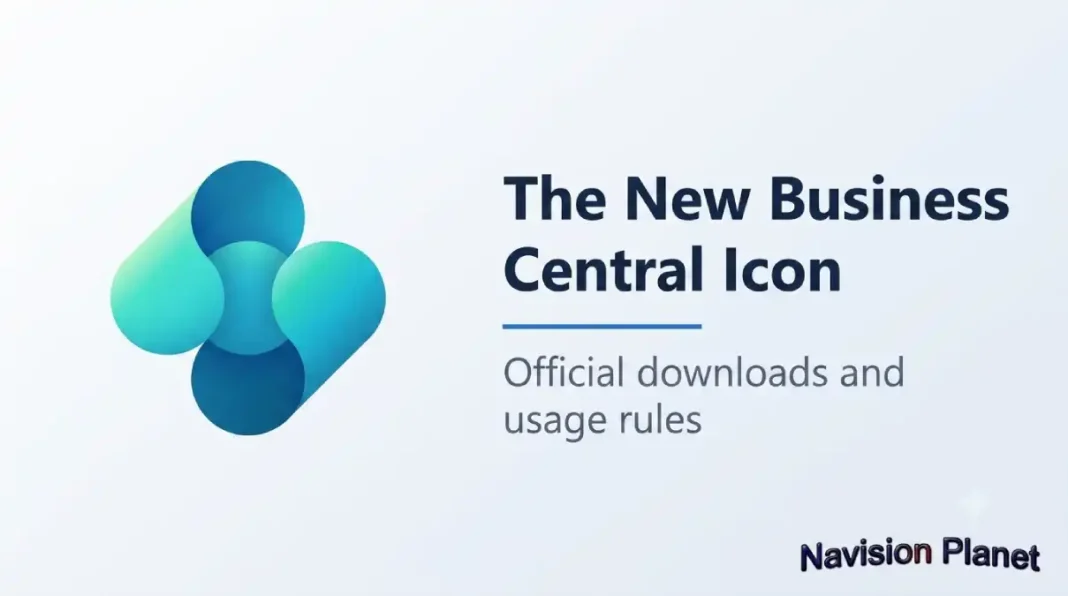
If you build proposals, architecture diagrams, training decks or partner websites, you need the Business Central icon at some point. And if you have looked recently, you will have noticed something: the icon has changed. Microsoft refreshed the Business Central logo, so a lot of presentations and websites out there are now carrying an outdated brand mark without realising it.
This guide covers where to get the official files, what actually changed and why, which format to use for which job, and the usage rules that most people breach without knowing. That last part matters more than it sounds: these are trademarked assets, and the rules are stricter than most consultants assume.
📋 In This Guide
Table of Contents
Where to Download the Official Icon
There are two official Microsoft sources, and you should always use these rather than a copy someone has rehosted on a blog. Files taken from Microsoft come with the current usage terms attached, and you can be certain they are the latest version rather than a stale copy.
| What you need | Official source |
|---|---|
| The new Business Central icon (source files) | aka.ms/BCicon Microsoft’s official short link. Includes vector and raster formats plus a usage rights document. |
| Dynamics 365 product icons (all apps) | Microsoft Dynamics 365 icons on Microsoft Learn The icon set for the wider Dynamics 365 family, with the usage terms stated on the page. |
| The full trademark rules | Microsoft Trademark and Brand Guidelines Read this before using any Microsoft mark in marketing material. |
💡 Why we link rather than host: the Business Central icon is a Microsoft trademark. We deliberately point you to Microsoft’s own download pages instead of serving copies from this site, so you always get the current file with its current terms. Sites that rehost brand assets are easy to find, but the copies go stale and the terms travel with the original, not the copy.
What Changed in the New Logo, and Why
Microsoft unveiled the refreshed Business Central logo at Directions EMEA 2025 in Poznań, Poland, and it rolls out alongside Business Central 2026 release wave 1 (BC 28) from April 2026.
The reasoning given is not purely cosmetic. Mike Morton, who leads the Business Central team, framed the new identity as reflecting the product’s shift toward deeper artificial intelligence capability. It also brings Business Central into line with Microsoft’s wider design language, so the whole Dynamics 365 and Power Platform family looks consistent.
For you, the practical consequence is simple. If your website, proposal template, architecture diagrams or app listings still carry the previous icon, they are now visibly dated to anyone who follows the product. In a competitive bid, that is a small but real signal about how current your practice is.
💼 From 18 Years in the Field
Brand marks change more often than people update their slide libraries. I have sat in bid meetings where a competitor’s deck still carried a Dynamics NAV era logo, and it quietly undermined everything else on the slide. Keep one master asset folder, dated, and refresh it whenever Microsoft moves. It takes an hour and it protects every document your team produces.
Which File Format and Size to Use
Microsoft supplies the icon in vector and raster formats. Choosing correctly is the difference between a crisp logo and a blurry one.
| Format | When to use it |
|---|---|
| SVG | Your default choice. Scales to any size without quality loss, so it works for web, large-format print and diagrams. Small file size too. |
| Vector format suited to print production and handing to a designer or printer. | |
| PNG | For slides, documents and web where a fixed size is fine. Supports transparency, so it sits cleanly on coloured backgrounds. |
The PNG files come in a range of square sizes, typically from small interface sizes such as 48 by 48 pixels up to 256 by 256 pixels. A simple rule for picking one:
- 48 to 64 pixels: inline with text, small interface elements, table rows, favicons.
- 85 to 128 pixels: slide corners, document headers, architecture diagram nodes.
- 256 pixels: title slides, feature panels, anywhere the icon is a focal point.
📌 Never scale a PNG up. Taking a 48 pixel PNG and stretching it to fill a title slide is the most common cause of a fuzzy logo. If you need it big, use the SVG, or start from the largest PNG available. Scaling down is fine; scaling up never is.
The Usage Rules Most People Get Wrong
This is the section the download posts leave out, and it is the one that actually matters. Microsoft’s Dynamics 365 icons page sets out clear conditions, and they are more restrictive than most people assume.
What Microsoft permits. The icons may be used in architectural diagrams, training materials and documentation. Within that permitted use you may copy, distribute and display them. Microsoft reserves all other rights, which means anything outside that scope needs explicit permission.
What is not allowed. Summarised in plain terms:
- Do not crop, flip or rotate the icon.
- Do not distort or change its shape in any way, which includes stretching it to fit a space.
- Do not use a Microsoft product icon to represent your own product or service.
- Use the icons as they appear in Microsoft Dynamics 365 or the individual product.
Microsoft’s wider Trademark and Brand Guidelines go further, noting that logos and product icons generally require an express licence to use. So the safe reading is this: using the icon to illustrate Business Central in a diagram or training deck sits comfortably within the permitted use, while building it into your own logo, app icon or product branding does not.
⚠️ The line that catches consultancies out: using the Business Central icon in a way that suggests Microsoft endorses your company, or that the icon represents your product. Illustrating that you work with Business Central is fine. Making it look like your own brand mark is not. If in doubt, read the guidelines linked above, and take legal advice for commercial branding decisions rather than relying on a blog post, including this one.
Common Mistakes I See in Real Decks
After reviewing a great many partner proposals and internal training packs, the same handful of errors come up repeatedly:
| Mistake | Why it is a problem |
|---|---|
| Recolouring it to match your brand | Changes the mark, which is not permitted, and makes it unrecognisable as the product. |
| Stretching to fill a placeholder | Distorts the shape. Hold Shift when resizing, or use the SVG. |
| Using an old NAV or early BC logo | Signals that the material has not been maintained. Very visible to anyone in the ecosystem. |
| A screenshot of the icon | Produces a fuzzy, off-white background version. Always use the supplied file. |
| Using it as your app or company icon | Not permitted, and it implies an endorsement that does not exist. |
| Writing the product name loosely | Microsoft asks for the full name, Microsoft Dynamics 365 Business Central, at first mention and in headings. “BC365” and similar inventions are not product names. |
If You Are a Microsoft Partner
Partners have a separate and more useful option. Rather than putting the product icon on your website to signal your credentials, use the Microsoft partner badge you are entitled to through the partner programme. That badge exists precisely to communicate your relationship with Microsoft, comes with its own brand guidance, and does not carry the ambiguity of using a product icon on your own marketing.
The simple division: use the product icon to point at the product (in a diagram, a training slide, a documentation page), and the partner badge to describe your business. Mixing the two up is where most compliance problems begin.
Not the Same Thing: Action Icons in AL
Worth clearing up, because the search terms overlap and developers land here by mistake. The Business Central product icon discussed above is a brand asset. That is entirely separate from the action icons you use inside Business Central pages when writing AL.
When you build a page in AL and add an action, you set its Image property to a named icon from Business Central’s built-in icon library, values such as New, Post, Print or Edit. Those are supplied by the platform, you do not download or install them, and they render in the ribbon. Nothing on this page applies to them.
If AL development is what brought you here, our AL programming language guide and Business Central technical interview questions will be more useful.
Your Update Checklist
If you are refreshing to the new icon, these are the places it usually hides:
- Proposal and pitch deck templates, including the master slide, not just the title page.
- Architecture and solution diagrams in your standard document set.
- Your website: service pages, footers, technology logos strip.
- Training material and user guides you hand to customers.
- AppSource or marketplace listings if you publish apps.
- Email signatures and social banners, easily forgotten and highly visible.
- Internal wiki and onboarding packs, so new joiners start with the current asset.
Do it once, centrally, and store the master files in one dated folder. Piecemeal updates guarantee an old logo surfaces in a customer meeting six months later.
FAQ, Business Central Icon and Logo
Where can I download the Business Central icon?
From Microsoft directly. The new Business Central icon source files are at aka.ms/BCicon, and the wider Dynamics 365 product icon set is on the Microsoft Learn icons page. Both links are in the table above.
Why did the Business Central logo change?
Microsoft unveiled the refreshed logo at Directions EMEA 2025 in Poznań. The Business Central team framed it as reflecting the product’s move toward deeper AI capability, and it aligns Business Central with Microsoft’s wider visual identity. It arrives with BC 28 from April 2026.
Can I use the Business Central logo on my company website?
Microsoft permits icon use in architectural diagrams, training materials and documentation. Using a product icon to represent your own product or service is not permitted. If you are a Microsoft partner and want to show your relationship with Microsoft, use your partner badge instead. Read Microsoft’s Trademark and Brand Guidelines, and take legal advice for commercial branding.
Can I change the icon colour to match my brand?
No. Microsoft asks that icons are used as they appear in the product, and that you do not crop, flip, rotate, distort or otherwise change their shape. Recolouring falls outside permitted use.
Which file format should I use?
SVG by default, because it scales without quality loss. PDF for print production. PNG for slides, documents and web at a fixed size. Never enlarge a small PNG.
What PNG sizes are available?
Microsoft supplies a range of square sizes, commonly from 48 by 48 pixels up to 256 by 256 pixels. Use the smaller sizes inline or in interface elements, and the larger ones where the icon is a focal point.
Is the product icon the same as action icons in AL?
No. The product icon is a brand asset. Action icons in AL are set through an action’s Image property using named values from Business Central’s built-in icon library, and they are supplied by the platform rather than downloaded.
Should I still use the old Business Central icon?
Only where you are deliberately documenting history. For anything current, use the new icon, and refresh your templates, website, diagrams and listings so you do not present outdated branding to customers.
Final Thoughts
Downloading an icon takes ten seconds. Using it correctly is what separates a professional practice from a careless one. Take the files from Microsoft’s official sources so you always have the current version with the current terms, choose SVG unless you have a reason not to, and keep the mark exactly as Microsoft supplies it.
And remember the distinction that causes most trouble: the product icon points at the product, while your partner badge describes your business. Keep those separate and your branding stays both correct and credible.
Stay tuned to NavisionPlanet for more practical Business Central guidance drawn from real project experience.
Note: Microsoft Dynamics 365 Business Central and its associated logos and icons are trademarks of Microsoft Corporation. This guide is independent commentary for consultants and partners, and links to Microsoft’s official download and guidance pages rather than redistributing brand assets. Usage terms are set by Microsoft and can change, so always read the current terms on the linked pages, and seek legal advice for commercial branding decisions. Navision Planet is not affiliated with or endorsed by Microsoft Corporation.
📖 Related guides on Navision Planet:
→ Business Central Download: All Versions and Direct Links
→ Learn the AL Programming Language
→ Business Central Technical Interview Questions + Mock Exam
→ Manufacturing in Business Central: The Complete Guide